
After a report is created, you can customize its configuration at any time. There are two ways to access the report settings:
Accessing settings via the Sidebar
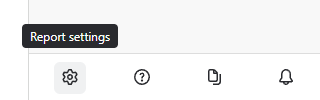
If you currently have the report open, navigate to the bottom of the right-hand sidebar and click the Settings button:
Accessing settings via the Report manager
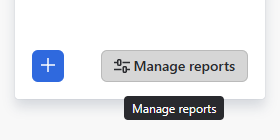
If you want to edit a report that isn't currently open, click the Manage reports button below the list of reports in the sidebar:
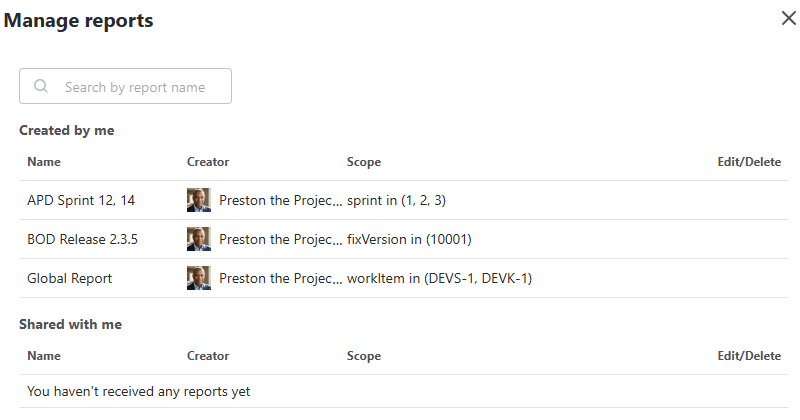
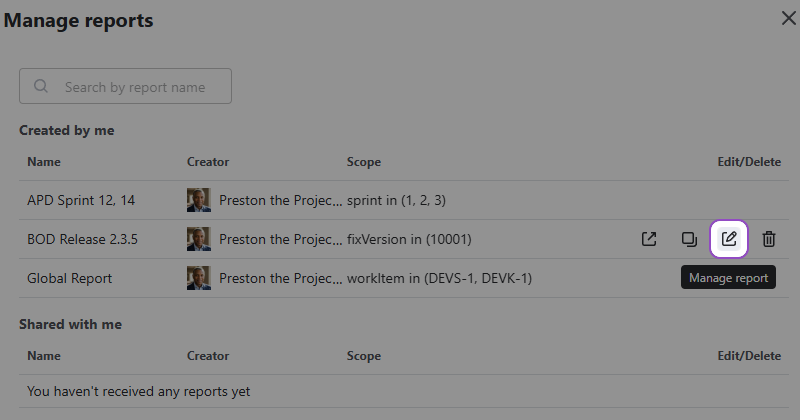
In the Manage reports window, find the report you wish to modify. Click the Edit button next to the report’s name:
Modifying your report
Either way, the report configuration window will appear on your screen:
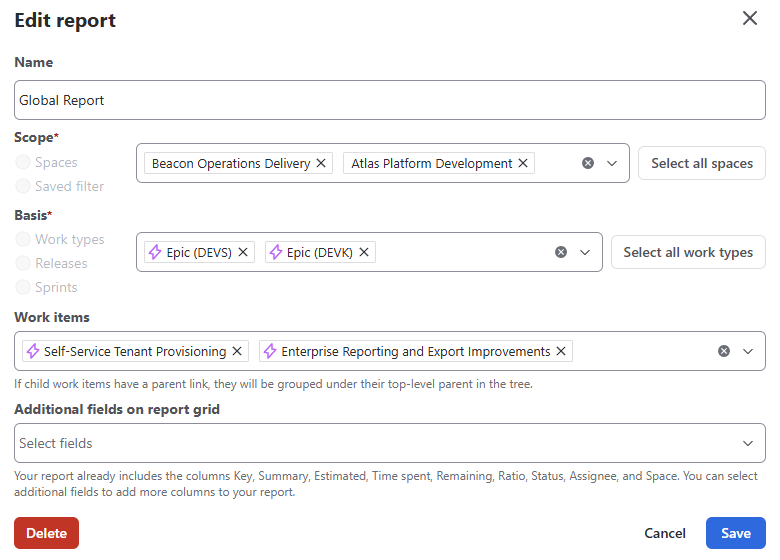
Once the configuration window appears, you can perform the following actions:
-
Rename: Update the report name for better clarity.
-
Adjust Scope: Change the spaces, work types, or filters the report pulls from.
-
Customize Fields: Add or remove columns in the data grid.
-
Delete: If the report is no longer needed, you can remove it permanently using the Delete button within this menu.
Once you are satisfied with your adjustments, click the Save button. If the report was opened before, it will automatically reload to apply your new settings.
Need a copy of a report with very complex scope, but don’t want to set it up all over again? Learn how to copy reports here.
Stay informed
Subscribe to get the latest updates and explore new product capabilities