
When you need a new version of an existing report—especially one with a complex scope—copying it is much faster than starting from scratch. This allows you to create a template and tweak it for different needs, such as adding extra fields or slightly changing the scope.
How to copy the report
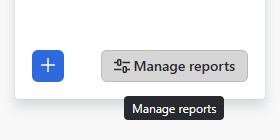
Open the Report manager by clicking the Manage reports button in the right-hand sidebar:
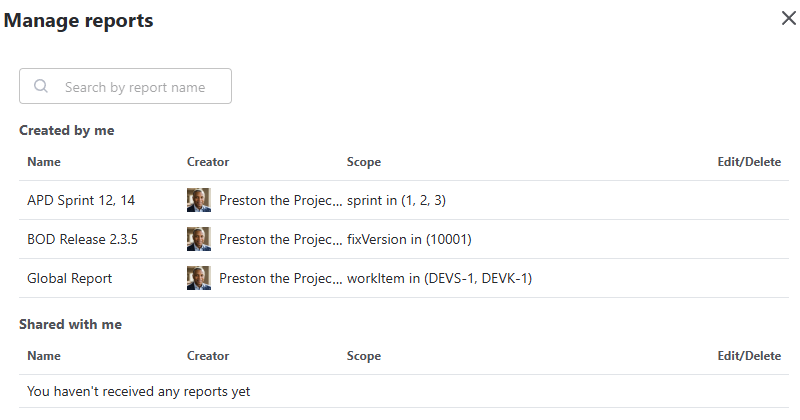
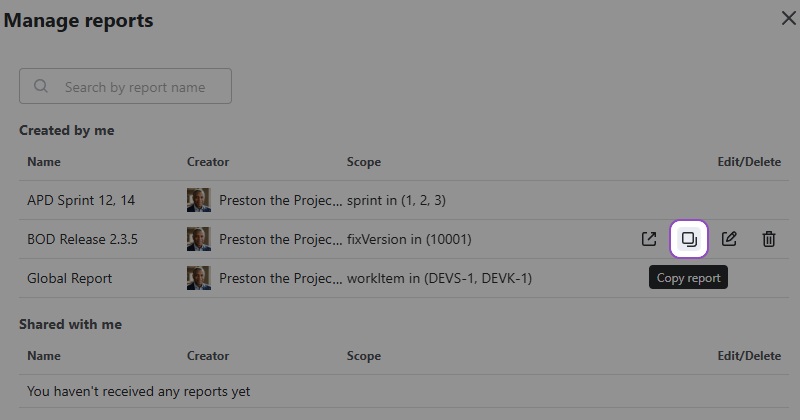
Locate the report you wish to duplicate and click the Copy button next to its name.
The Report Creation window will appear with all parameters pre-filled from the original. By default, the name will be set to Copy of [Original Report Name]:
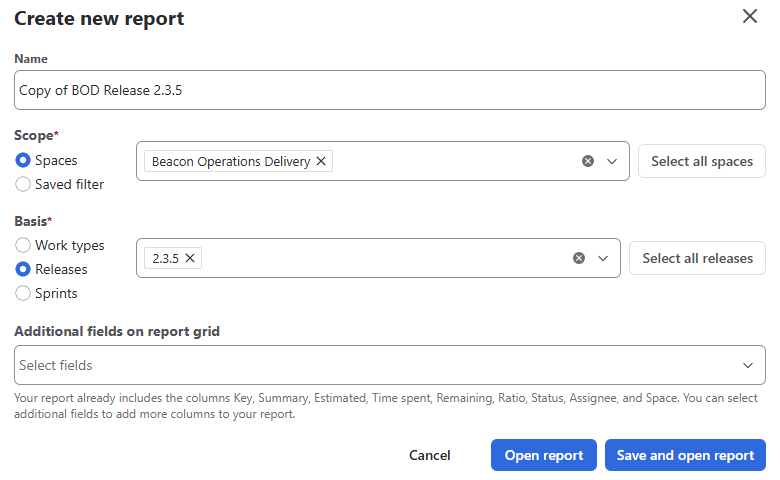
Tip: We recommend updating the name immediately to keep your sidebar organized.
Just like when creating a new report, you have two options for finalizing your copy:
Open Report
This loads the data immediately without saving the new configuration to your sidebar.
Note: You cannot modify the report's parameters while in this preview mode. To make the report permanent and editable, you must click the Save button in the top-right corner of your screen once the data has finished loading.

If you navigate away or refresh the page while using the Open report (unsaved) option, the current view will be lost. You should use the Save button to ensure you don't lose your configuration, but only if you plan on returning to this specific report later.
There is no need to save every single one-time query—saving is best reserved for reports you intend to use as a recurring part of your workflow to keep your sidebar clean. 🙂
Save and Open Report
This immediately saves the copy to your Reports panel and begins loading the data.
Benefit: Once the data is loaded, you have full access to the Settings menu to further re-configure or tweak the report as needed.
Is your sidebar crowded with the no longer needed reports? Learn how to delete reports here.
Stay informed
Subscribe to get the latest updates and explore new product capabilities