
Sharing report configurations is a powerful way to ensure everyone is looking at the same metrics, whether it is to share a weekly sprint progress report with internal team, or provide stakeholders with a monthly project overview to update them on high-level data with a standardized view.
What do you share?
When you share a report, you are sharing its configuration (its name, scope, and selected fields).
Note: Sharing a configuration does not bypass Jira security. Your colleagues will only see data within the report that they already have permission to access in Jira.
How sharing works
There are a couple of rules when it comes to sharing your reports:
-
Saved reports only: You can only share reports that have been saved to your sidebar. If you are currently in "preview" mode, you must save the report before the Share button becomes active.
-
Ownership: Only the owner (the person who created the report) can manage its sharing settings.
-
No editing for others: Sharing a configuration does not allow others to modify your settings. Only you, as the owner, can make permanent changes to the report.
How to share
Locate the Share button in the top-right corner of your screen.
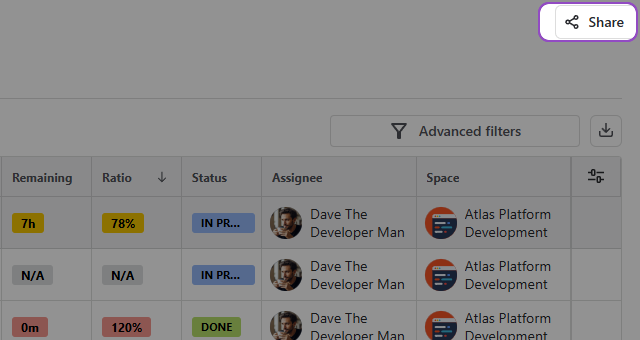
Click it to open the sharing window:
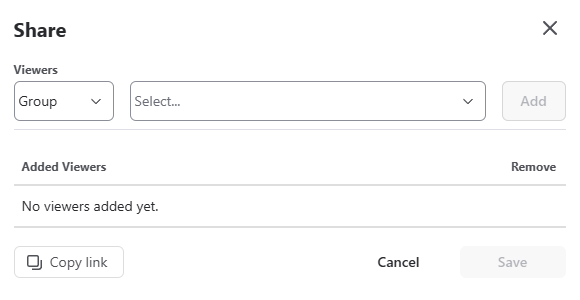
The sharing window is divided into two sections, share selection and the sharing list.
Share selection
Choose the type: Select whether you want to share with an individual User or a Group (Group is selected by default).
Search & Add: Use the search bar to find the specific name or group. Once selected, click the Add button. The name will then appear in the Sharing List below.
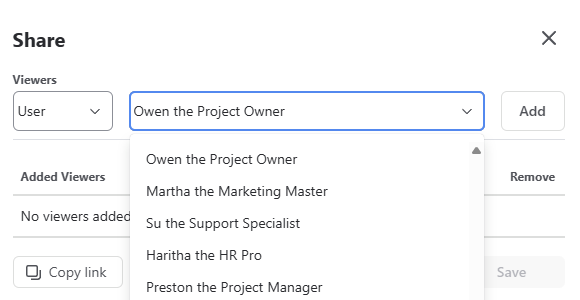
Sharing list
This list shows everyone who currently has access to your report configuration. Once you’ve added everyone who you intended to share your report with to the sharing list, click the Save button within the sharing window to apply your changes to the list.
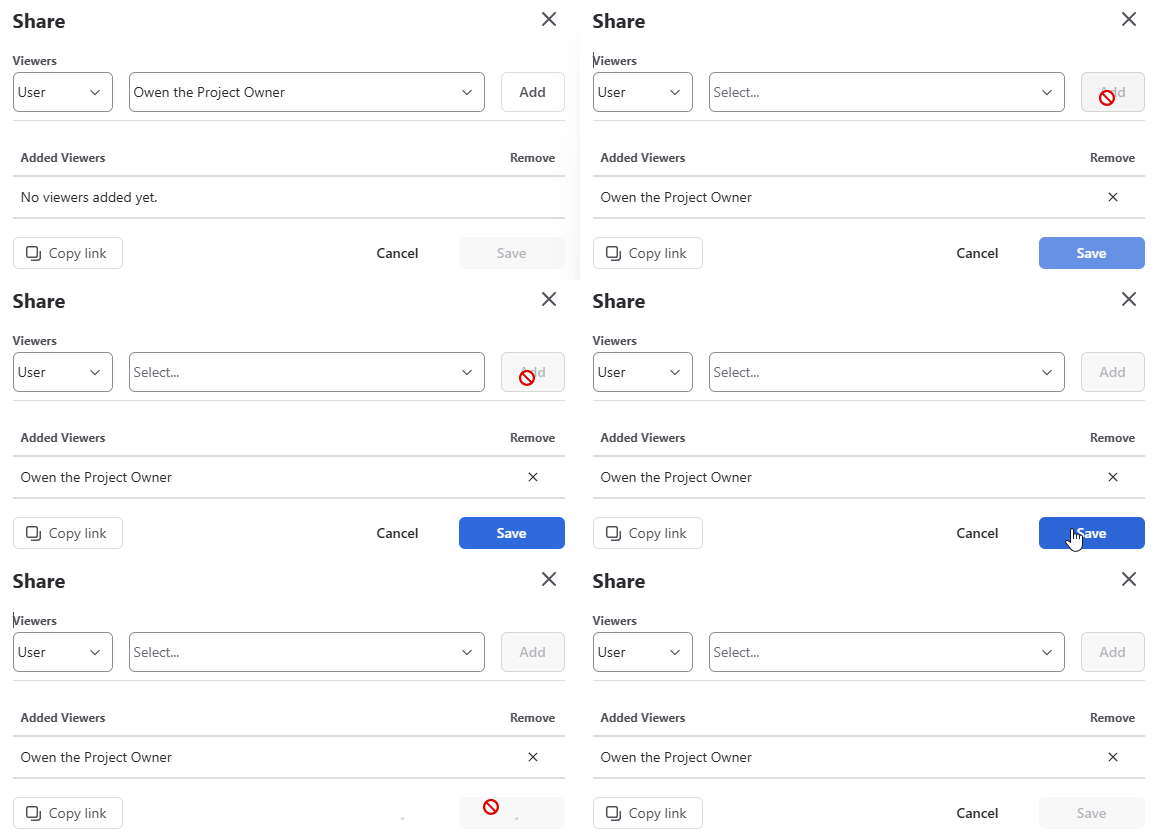
Sharing a link to the report
If you want to send a direct link to a specific report configuration, you can do so through the sharing window.
Open the sharing window by clicking the Share button in the top-right corner.
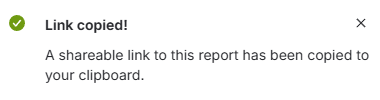
Click the Copy Link button. The URL will be saved to your clipboard, ready to be pasted anywhere else.
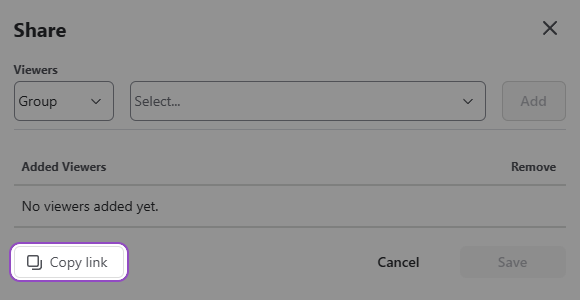
Important: Sharing the link is not enough to grant access. If a user opens the link but hasn't been added to the sharing list, they will see an error. Always ensure you have added the specific users or groups to the list and clicked Save before sending the link.
Removing access
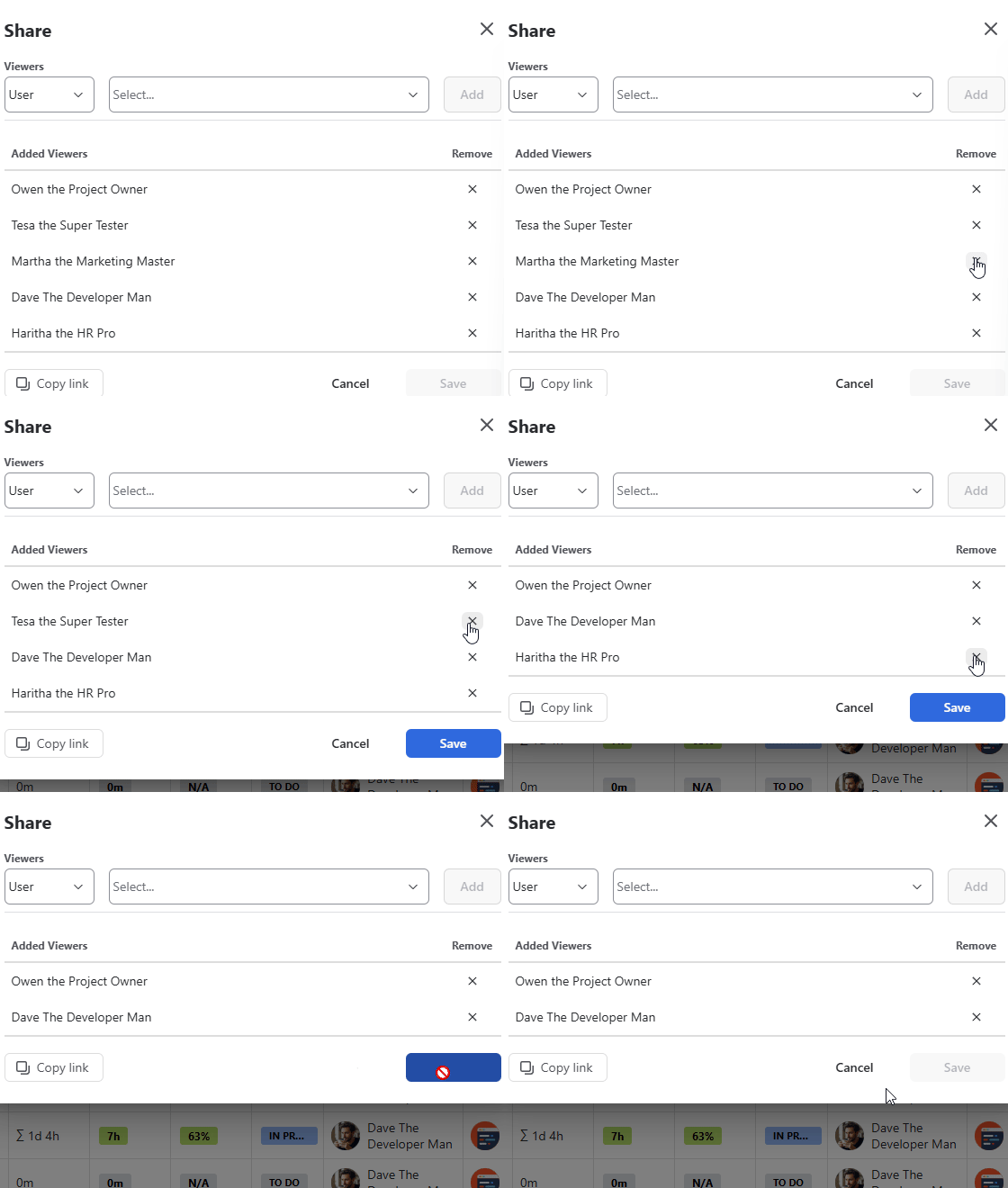
If you wish to stop sharing a report with someone, open the sharing window by clicking Share button and locate the person or group in the sharing list.
Click the ✖️ (cross) button next to their name. Once you are happy with the current sharing list, click Save to apply the changes.
Stay informed
Subscribe to get the latest updates and explore new product capabilities