
If you need to have a quick look at certain work item’s data without going through a report creation process, we got you! TeamTime for Jira is available from within the work item’s content area:
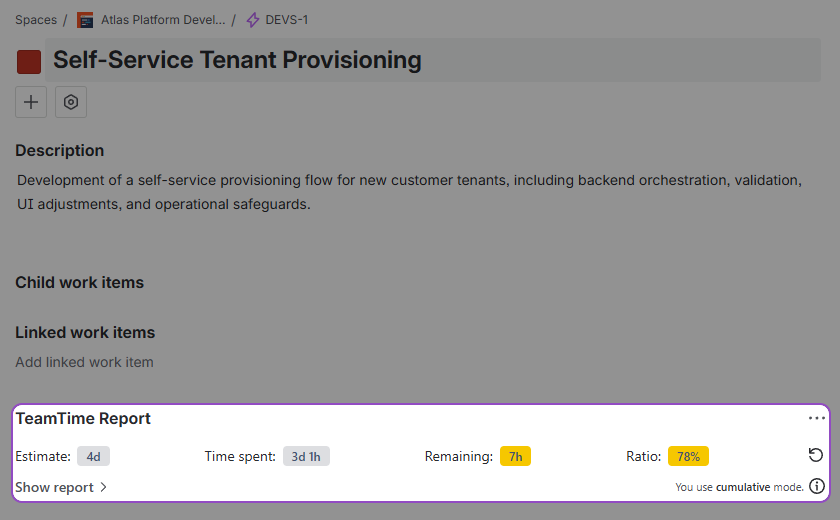
TeamTime for Jira App’s Section
You can find the following information within the section:
-
Estimate: Shows the work item’s estimate, which is either calculated or stays a fixed value, depending on your calculation mode
-
Time spent: Shows logged time of the work item, summing up the work logs from itself and the child work items
-
Remaining: Shows remaining time, which is calculated by subtracting Time spent from the Estimate. In case of an overrun, the remaining time will be negative
-
Ratio: Shows how much of the Estimate was already spent, in percent (%)
-
Show report: Access detailed information about the current work item in form of a mini-report
-
Current mode: The app will tell you which mode is active within current space.
Upon clicking Show report option, the section will expand and provide the breakdown of all estimates and time spent related the current work item and its children:
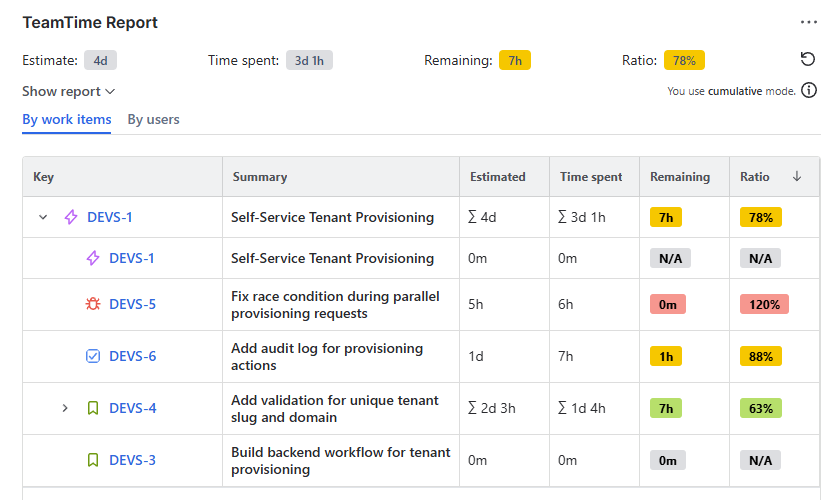
You can sort the content of this mini-report by clicking the headers of the columns present.
TeamTime for Jira App’s Custom fields
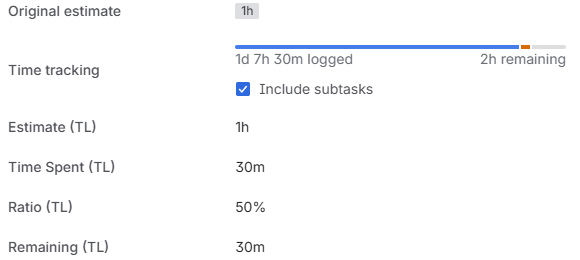
You can view TeamTime data directly alongside your native Jira fields (like Status or Priority) by adding them to your Work item layout.
How to Add Fields to Your View
TeamTime automatically creates four custom fields upon installation. To add them to your work item screen:
Open any Jira work item and click Configure in the bottom-right of the screen:
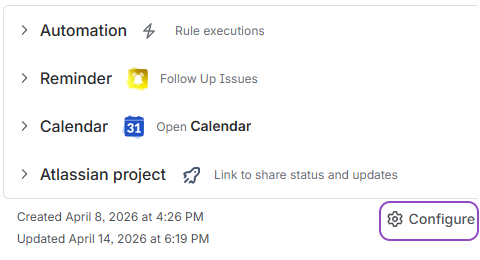
Note: If you don’t see the Configure button, you do not have permissions to edit work items' screen layout. Contact your administrator for these fields to be added.
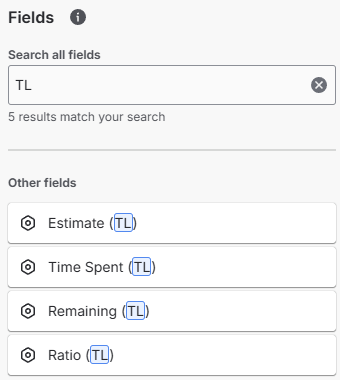
In the search bar, type the suffix TL.
All four TeamTime fields will appear in the results, allowing you to drag and drop them into your preferred position on the screen:
What do these fields track?
It is important to note that these fields provide data strictly for the current work item.
Individual Logic: These fields show only the estimate, logs, and remaining time for the specific work item you are viewing.
App Section vs. Fields:
-
The TeamTime App Section displays the mini-report, which includes the rolled-up totals from all child work items and the current work item.
-
The TeamTime Fields provide an at-a-glance view of the single task without the child data clutter.
Stay informed
Subscribe to get the latest updates and explore new product capabilities