
To keep your workspace organized and clutter-free, you can remove reports you no longer need. There are two ways to permanently delete a report.
Deleting via Report Settings
If you already have the report open, you can delete it directly from its configuration menu.
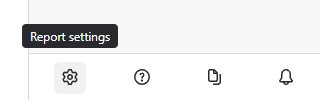
Click the Settings button at the bottom of the right-hand sidebar.
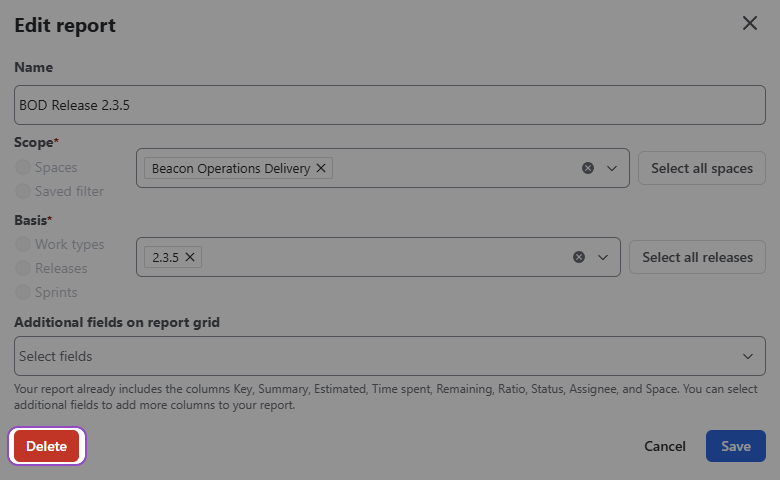
In the settings window, locate the Delete button in the bottom-left corner:
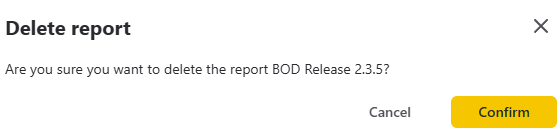
A confirmation window will appear. Click Confirm to finalize the deletion.
Deleting via the Report manager
This is the fastest way to delete one or more reports without opening them individually.
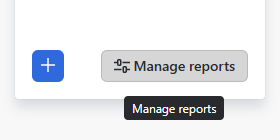
Click the Manage reports button in the right-hand sidebar to open the Report manager.
Locate the report you wish to remove and click the Delete button next to its name.
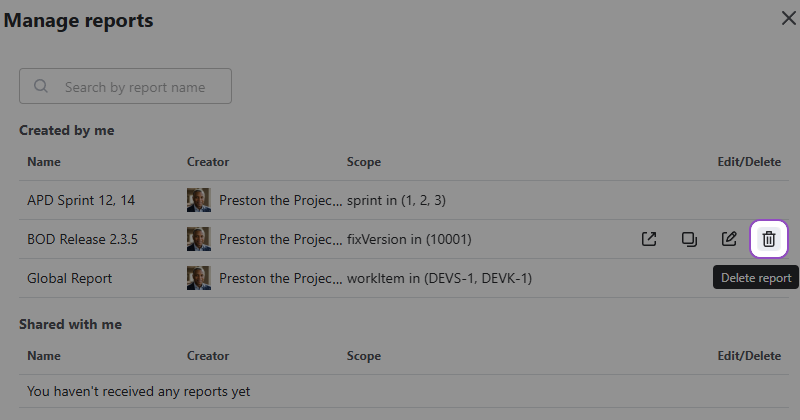
When the confirmation window appears, click Confirm.
Warning: Deleting a report is an irreversible action. Once a report is deleted, all its configurations and settings are permanently removed and cannot be restored.
Done organizing your sidebar? Now check out how to efficiently use generated reports here.
Stay informed
Subscribe to get the latest updates and explore new product capabilities