
Note: You can edit a reminder if you are its creator, or if the creator granted the Allow edit permission when setting up a private reminder. For Public reminders, only its creator has the permission to modify it.
Editing a reminder from a work item
-
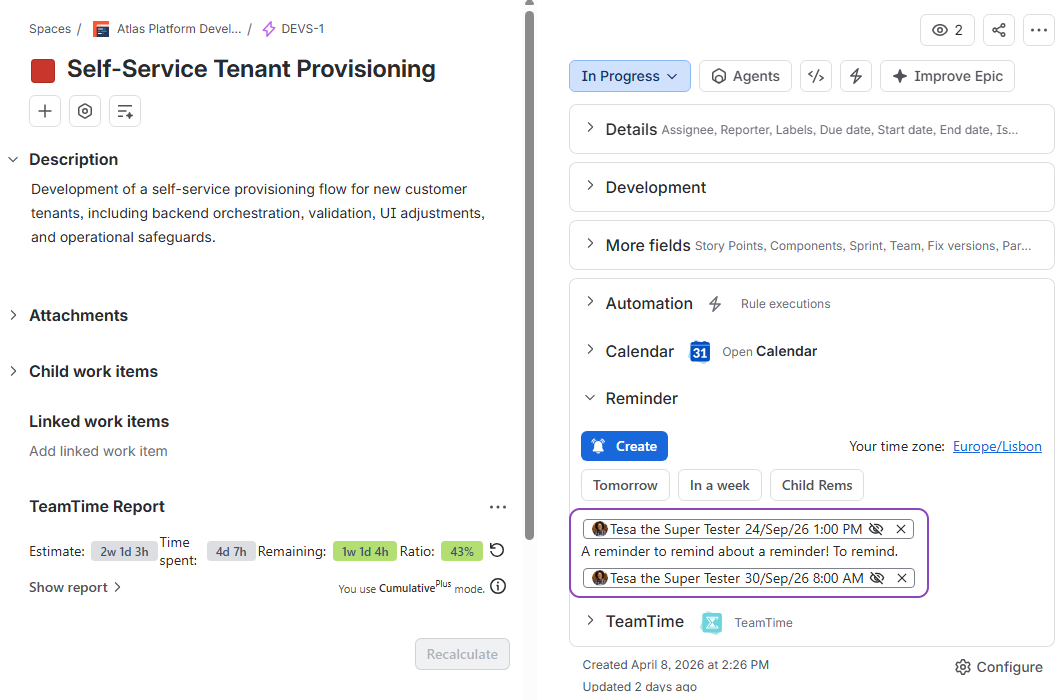
Open the work item containing the reminder you want to modify:
-
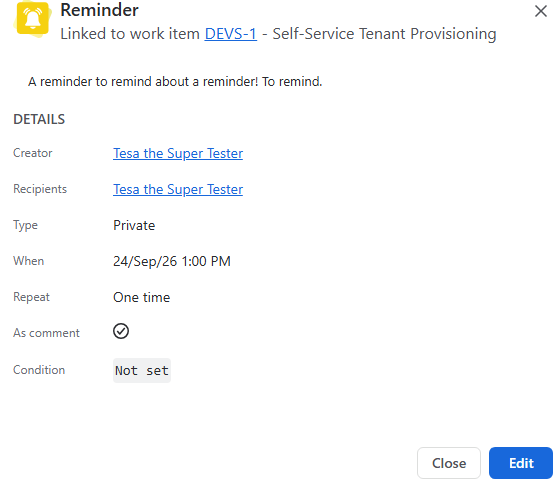
In the work item’s context panel, locate the Reminder section. Click on the reminder entry you wish to edit to open the information pop-up:
-
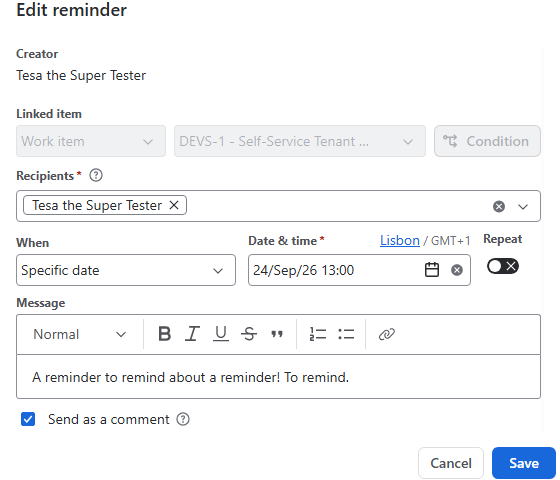
Click Edit in the bottom-right corner of the pop-up to open the editing window to open the editing window:
-
Update the necessary fields (recipients, scheduled date, recurrence, or message).
Editing a linked work item is not allowed: To attach a reminder to a different work item, you may need to create a new reminder. -
Click Save to apply your changes.
After that, your reminder will update to reflect the changes. 🙂
Editing a reminder from the app main page
-
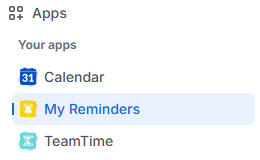
Navigate to the main Reminder app page via Apps > My Reminder.
-
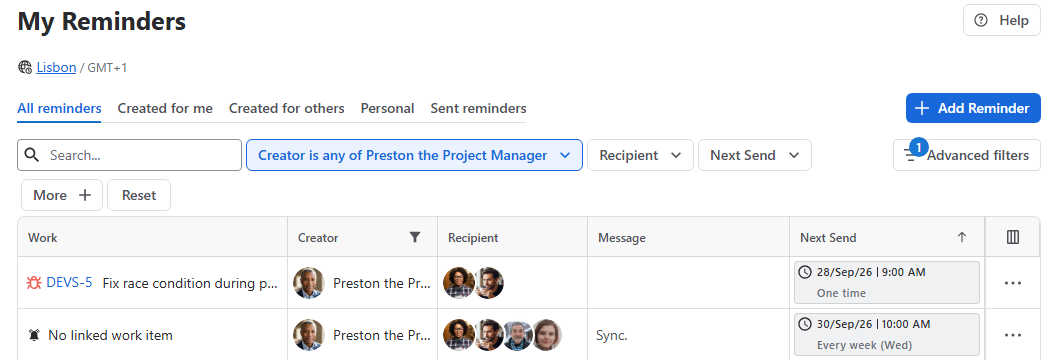
Use the Search bar to filter by message keywords or work item keys, or apply the Creator, Recipient, or Date Sent filters to narrow down the list:
-
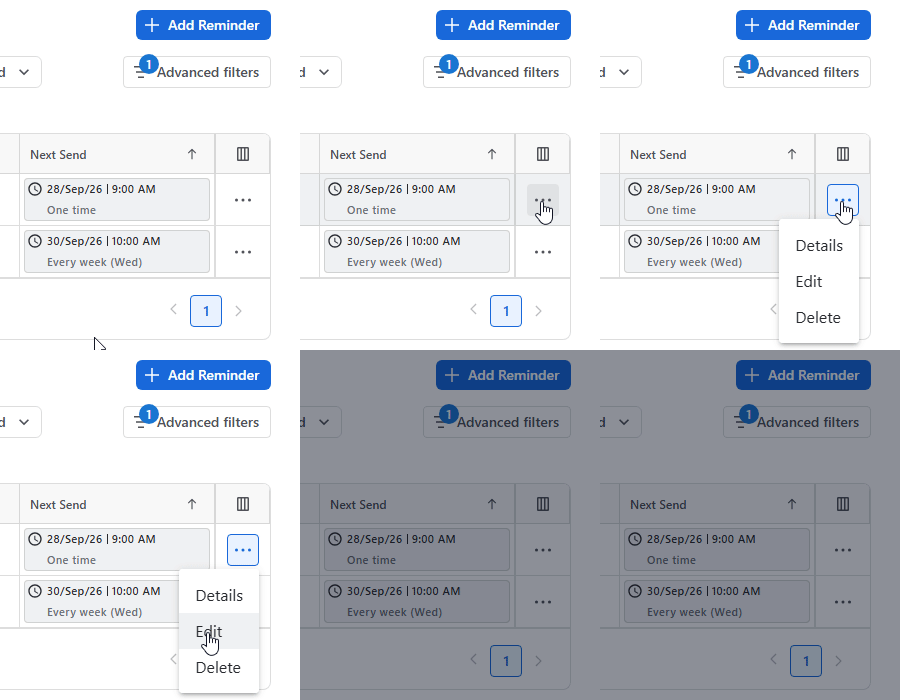
Locate the reminder row, click the More options (...) button on the far right, and select Edit.
-
Make your desired adjustments in the reminder configuration window:
-
Once you are done, click Save.
Editing personal reminders
Similarly to the section above, if you want to edit a personal reminder, follow these simple steps:
-
Navigate to the main Reminder app page (Apps > My Reminder).
-
Select the Personal tab above the data grid.
-
Locate the personal reminder you want to update via filtering.
-
On the right side of the reminder row, click the More options (...) button and select Edit.
-
Update your reminder details and click Save.
Stay informed
Subscribe to get the latest updates and explore new product capabilities