
When a reminder is no longer needed, you can permanently remove it from the system.
Note: You can delete a reminder if you are its creator, or if the creator granted the Allow edit permission when setting up a private reminder.
Deleting from a Work item
-
Open the work item containing the reminder.
-
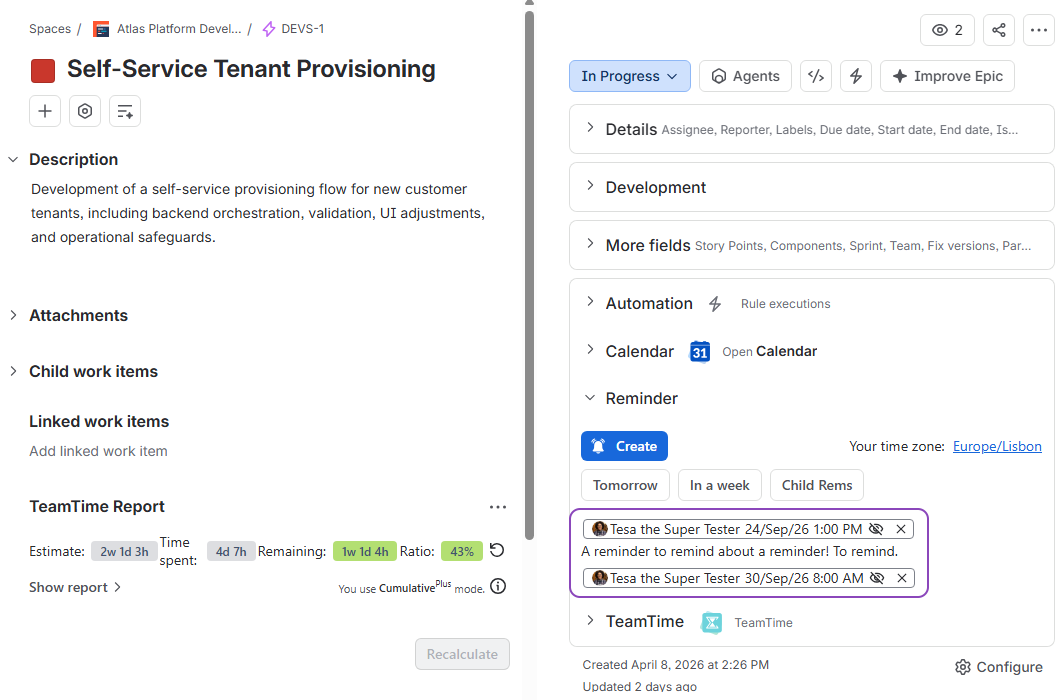
In the work item’s context panel, locate the Reminder section:
-
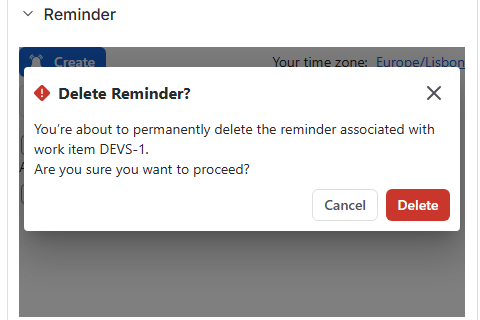
Find the reminder you want to remove and click the ✖️ button directly next to it. A confirmation window will appear in the context panel:
-
Click Delete to confirm your choice. The reminder will then disappear from the work item screen, as well as from your reminders within the app’s main page.
Deleting from the main app page
-
Navigate to the main app page (Apps > My Reminder).
-
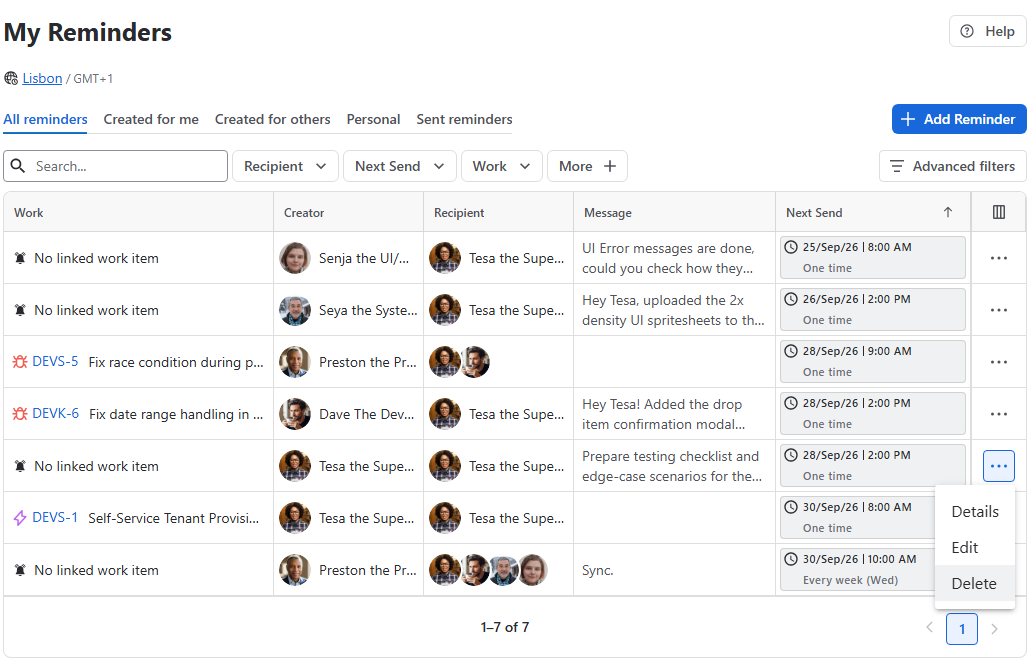
Locate the reminder you wish to delete using the main page’s tabs (All Reminders, Created for Me, Created for Others, or Personal) or the top search and filter bar:
-
On the far right of the reminder row, click the More options (...) button and select Delete.
-
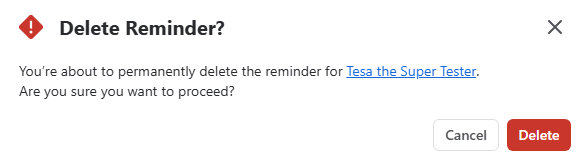
In the confirmation modal that appears, click Delete to confirm:
Stay informed
Subscribe to get the latest updates and explore new product capabilities