
The Reminder app offers flexible creation options, allowing you to set up issue-linked or standalone personal reminders from anywhere within Jira.
Creating a reminder from within a work item
-
Open the work item where you want to set a reminder.
-
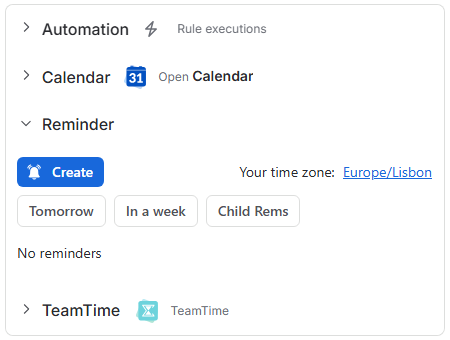
In the work item’s context panel, locate the Reminder section.
-
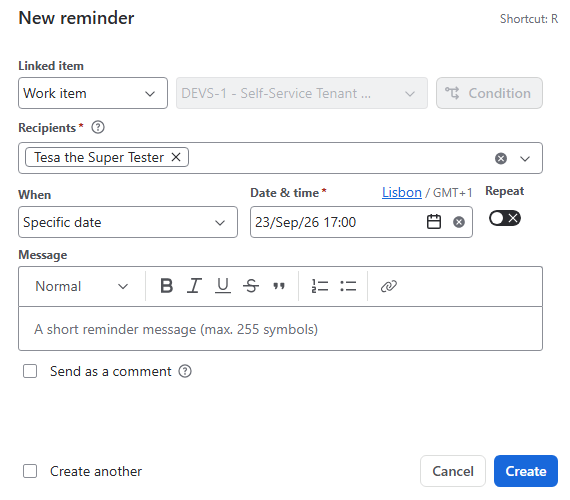
Click Create to open the creation modal. (Shortcut: Press R while viewing the issue). A reminder creation window will appear:
-
Since the reminder creation window was opened from within a work item, Linked item → Work item field is already populated, and the selected work item is locked.
-
In the Recipients field, search for and select the intended recipients. You can assign reminders to yourself or individual users.
The ability to send group-, watcher- or participant-based reminders is granted by a Space-level Ability to create reminders for groups permission.
-
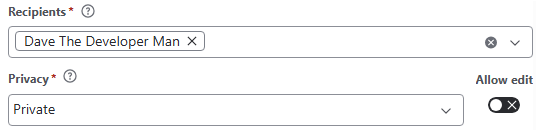
Once you select a Recipient other than yourself, a new field will appear. Select whether the reminder is going to be Private or Public.
-
Choose whether the recipients have the permission to Edit or Delete the reminder.
This toggle is available only for private reminders. For public reminders, editing rights are managed centrally via Space-level Ability to manage (edit/delete) all non-private reminders within issues permissions.
-
Select the Date & Time for the reminder to trigger.
Note: The app will return an error if you select a past date or time.
-
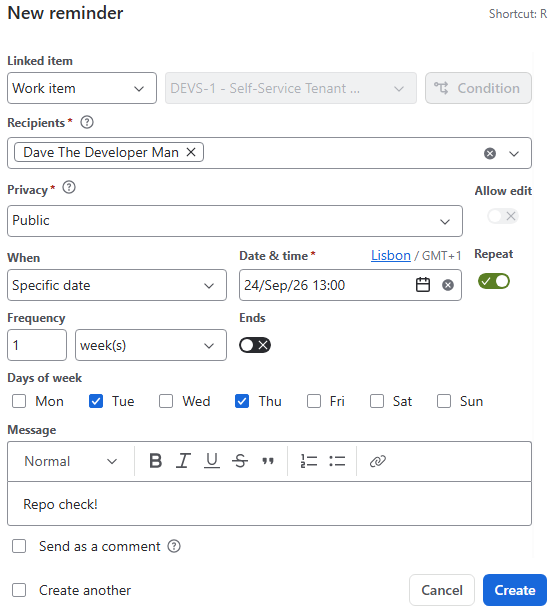
If needed, switch the Repeat toggle On to reveal the Frequency fields and set a recurrence schedule (Every certain amount of day(s)/week(s)/month(s)).
-
-
You can choose the End date of a recurring reminder by switching the End toggle On and selecting the date the reminder will deactivate.
-
-
Enter a message in the Message field (up to 255 characters) to provide context for the recipients.
-
Choose optional display settings:
-
-
Send as a comment: Automatically posts a public comment on the issue on the scheduled date alongside the reminder notification.
-
Note: Comments posted via this option are visible to anyone with view permissions for the work item. In Jira Service Management (JSM), these comments are always public (not internal).
-
Once all fields are populated, click Create.
Your new reminder will instantly appear under the Reminder tab in the work item’s context panel and within your main app view:
Quick reminders (One-click setup)
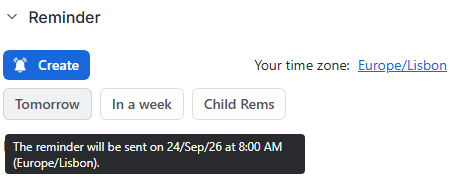
For fast follow-ups without manual configuration, use the quick-action buttons in the issue context panel:
-
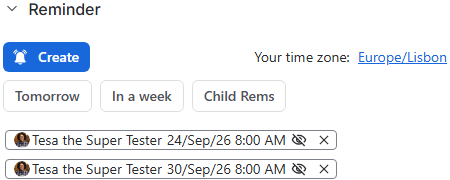
Tomorrow: Instantly creates a reminder assigned to you with no message, set to trigger exactly 24 hours from the moment it is clicked.
-
In a week: Instantly creates a reminder assigned to you with no message, set to trigger exactly 7 days later:
Creating a reminder from the main app page (or anywhere in Jira)
You can launch the reminder creation modal from any screen in Jira—including inside other apps:
-
Open the creation modal using one of two methods:
-
Click the Add reminder button on the main app page:
-
-
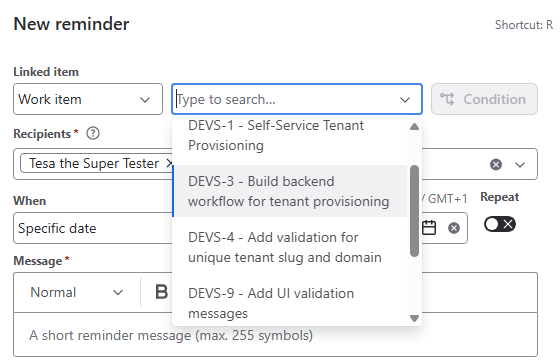
Or, Press R on your keyboard from anywhere within Jira (including other apps):
-
In the Work item selection field, type the issue key (e.g., PROJ-123) or search by summary keywords.
-
Complete the recipient, date, recurrence, and message fields as described above.
-
Click Create.
Creating multiple reminders sequentially
To streamline bulk creation:
-
Open the reminder creation window.
-
Check the box next to Create another in the bottom-left corner of the modal:

-
Fill in the fields and click Create. The modal will remain open with reset fields so you can immediately add the next reminder.
-
Uncheck the box or click Close when you are finished.
Personal reminders (Unlinked)
If you need to set a reminder that is not tied to a specific Jira work item:
-
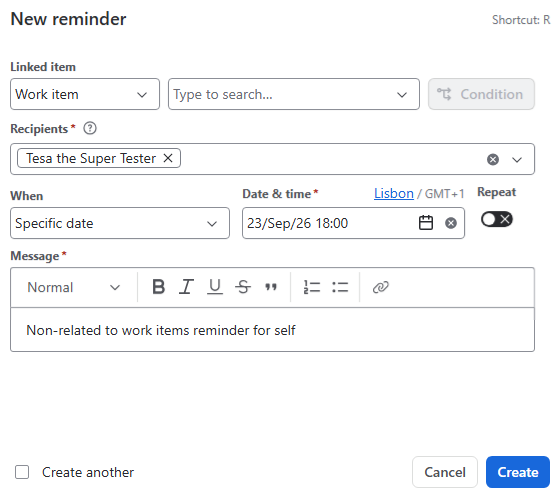
Open the reminder creation modal (via the main app page or the R shortcut).
-
Leave the Work Item field blank:
-
Configure the recipients, date, recurrence, and message.
-
Click Create.
Unlinked reminders appear exclusively in the Personal section of the main app page:

Privacy Tip: Personal reminders are strictly private—no other users can view your personal reminder entries.
Stay informed
Subscribe to get the latest updates and explore new product capabilities