
The main app page displays your reminders in an interactive Data Grid. You can customize, sort, and filter this table to build personalized views and quickly locate specific reminders.
Controlling grid columns
Tailor the layout of the data grid to display only the details you need:
-
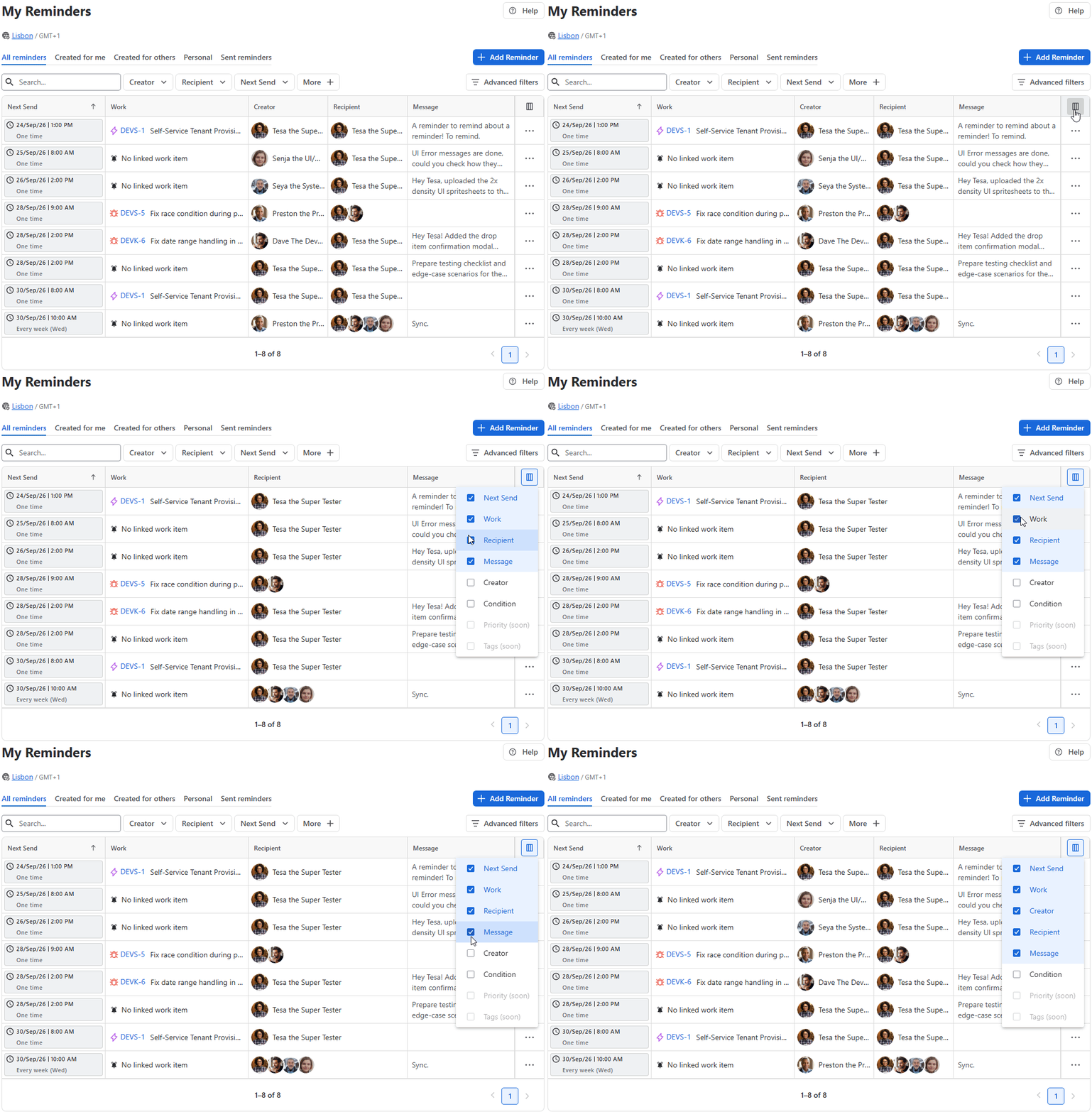
Add or Remove Columns: Click the Configuration icon in the top-right corner of the table to select or deselect visible columns.
-
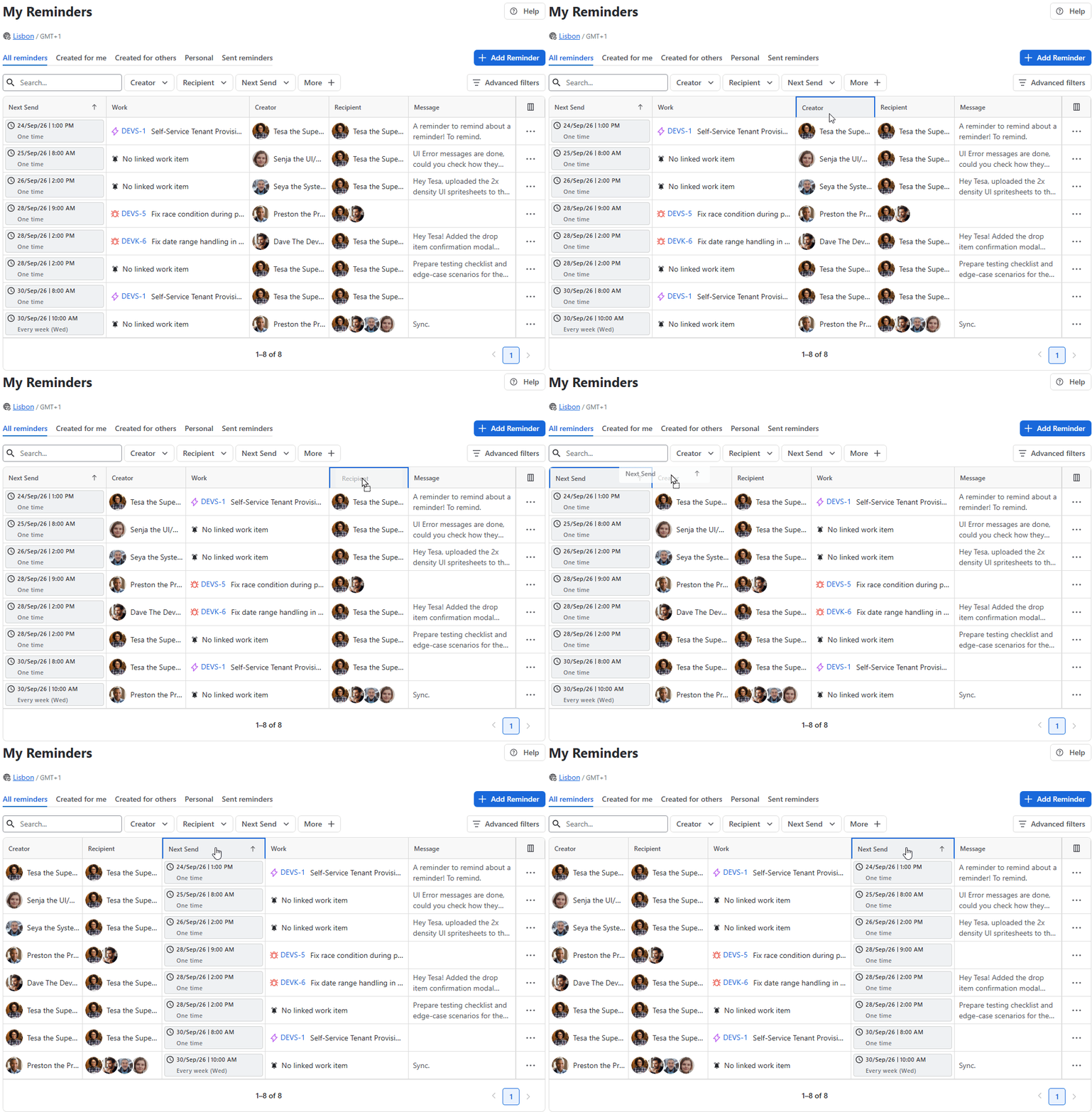
Reorder Columns: Click and hold any column header, then drag it horizontally to a new position in the table:
Sorting data
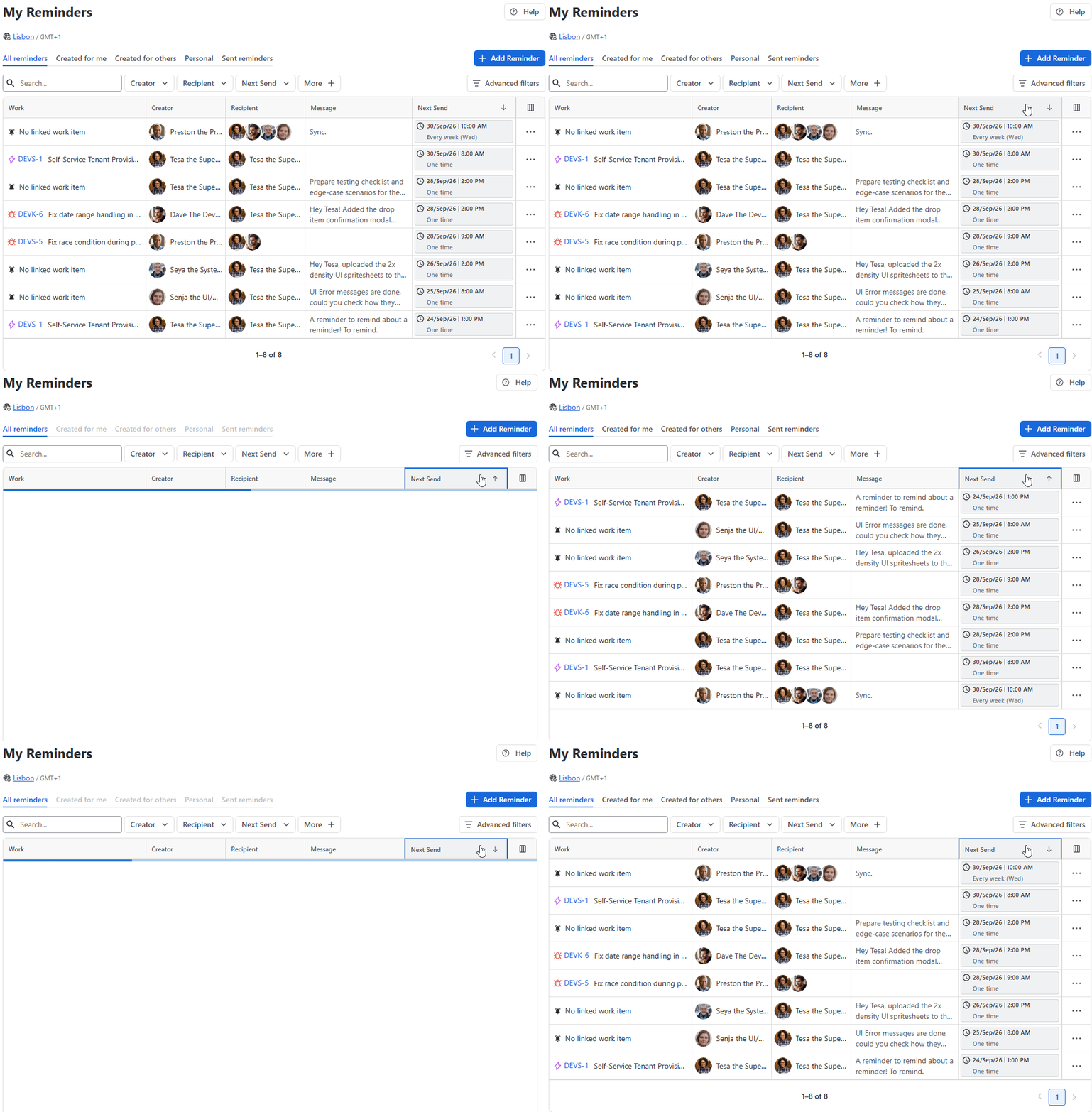
Click a date column header to toggle through sorting modes.
-
1st Click: Sorts column data in Ascending order.
-
2nd Click: Sorts column data in Descending order.
Filtering data
The app provides three synchronized layers of filtering positioned directly above the grid:
Search field
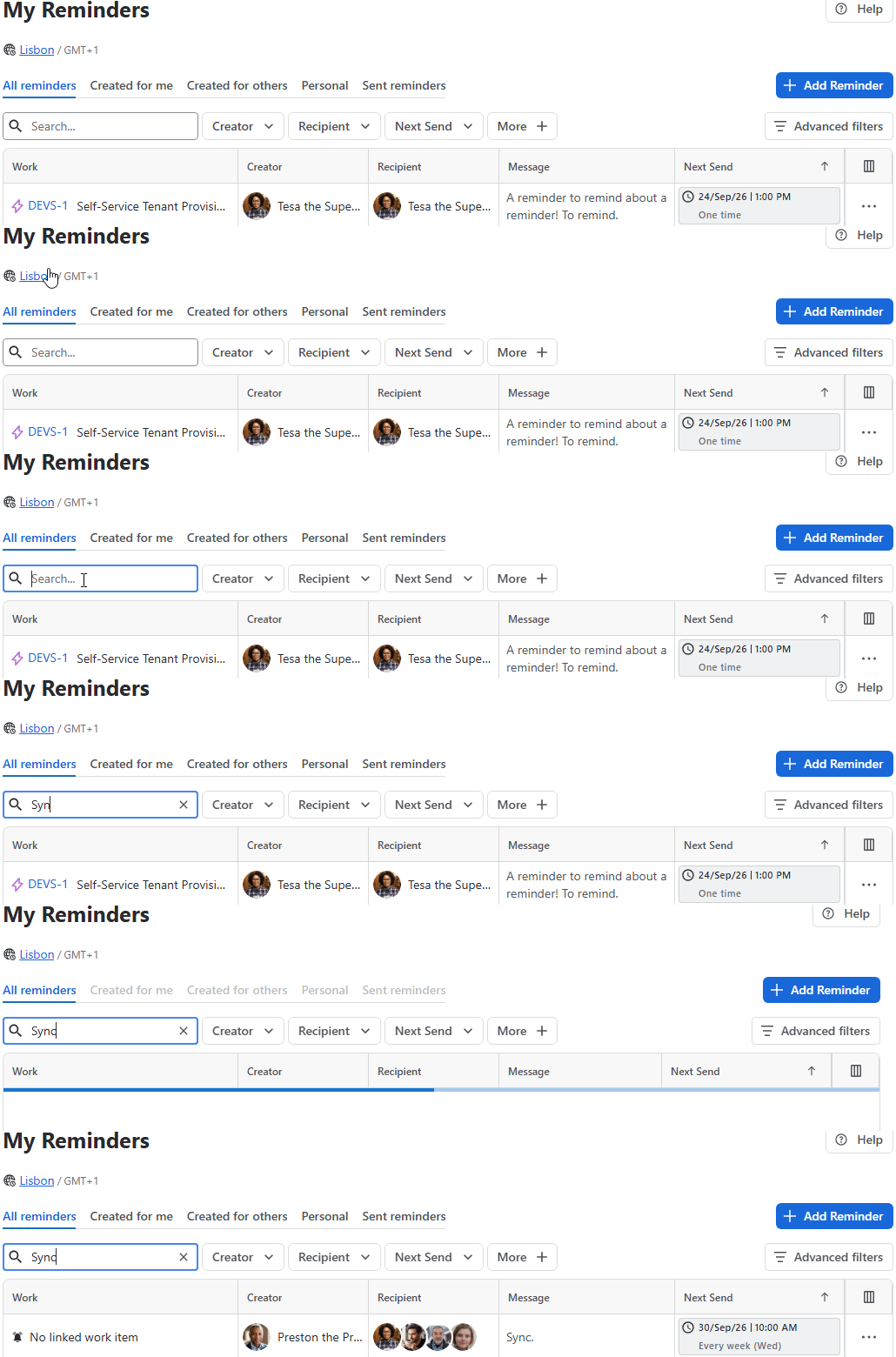
Type any text into the Search box in the upper-left area of the grid. The table updates dynamically to display reminders containing matching keywords in:
-
Reminder messages
-
Linked work item keys (e.g., PROJ-123)
-
Linked work item summaries
If no records match your search, the grid displays:
Nothing to show here. There are no relevant entries so far.
Click the Clear ✖️ button inside the search field to reset your search text.
Quick filters
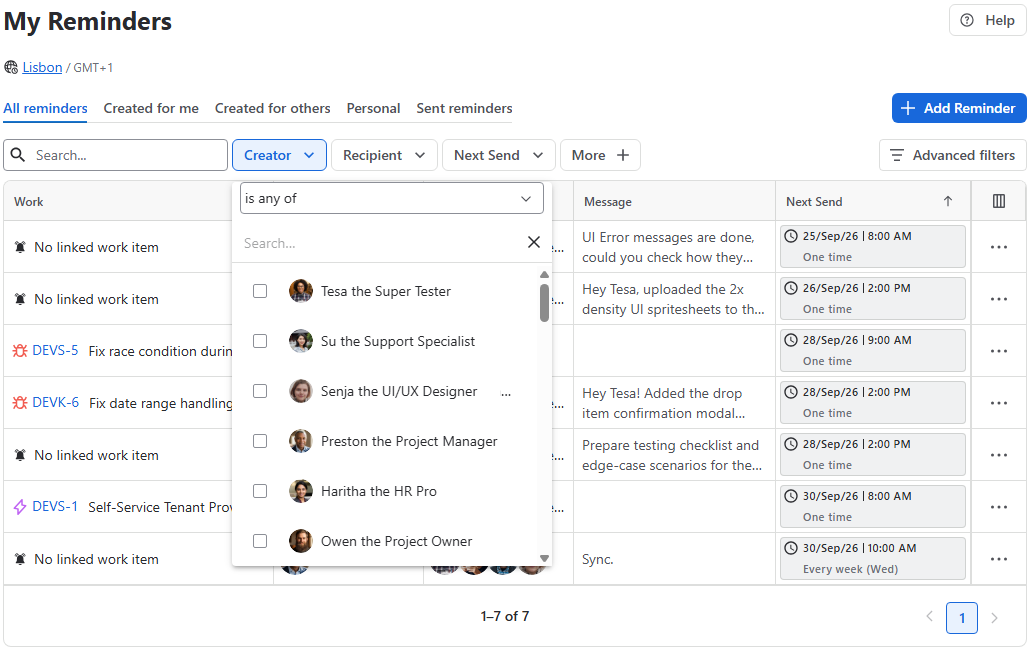
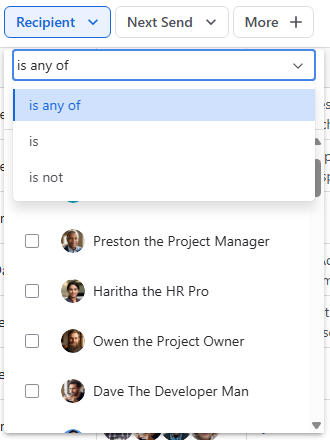
Located above the table, Quick Filters allow fast filtering by key attributes (such as Creator, Recipient, or Next Sent):
-
Click any pinned filter button to select your parameter values.
-
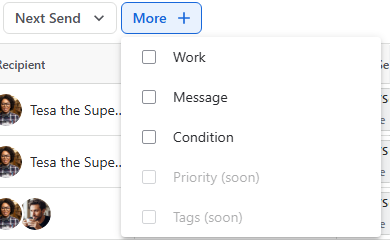
To modify which filters appear in this toolbar, click More (+) to open the filter menu, then check or uncheck the filter boxes you wish to pin or unpin.
Advanced filters
For complex queries requiring precise criteria across multiple parameters:
-
Click the Advanced Filters button to open the configuration modal.
-
Click Add Filter to define specific criteria rules.
-
Applying an advanced filter automatically pins the corresponding Quick Filter above the grid for easy access later:
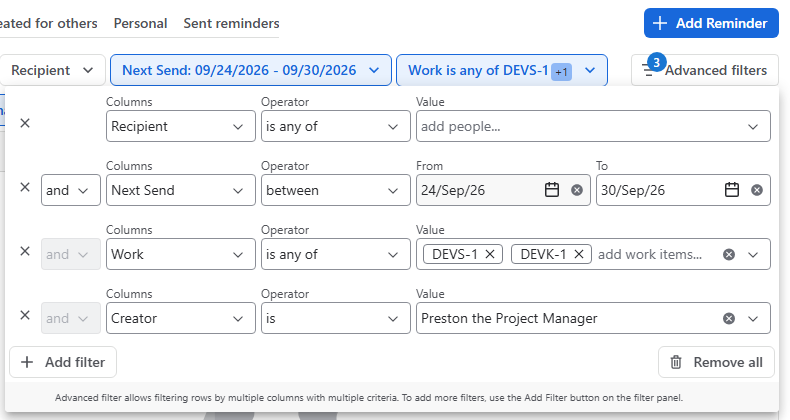
Synchronization: Quick and Advanced filters are fully synchronized. Any change made in one will automatically update the other, eliminating the chance of any conflicts.
Note: Clearing your Advanced Filters will also reset the Quick Filters panel to ensure your view is completely refreshed.
Stay informed
Subscribe to get the latest updates and explore new product capabilities