
Similarly to calculation modes, time conversion is configured at the Space level.
Administer space permission required: To change the time display, you must have Jira Space Administrator permissions for that specific space.
Navigating to time conversion settings
In the Jira sidebar on the left, locate the Spaces section, and open it.
Find space you wish to configure, and click the More actions (…) button next to the space name. Select Space settings from the menu.
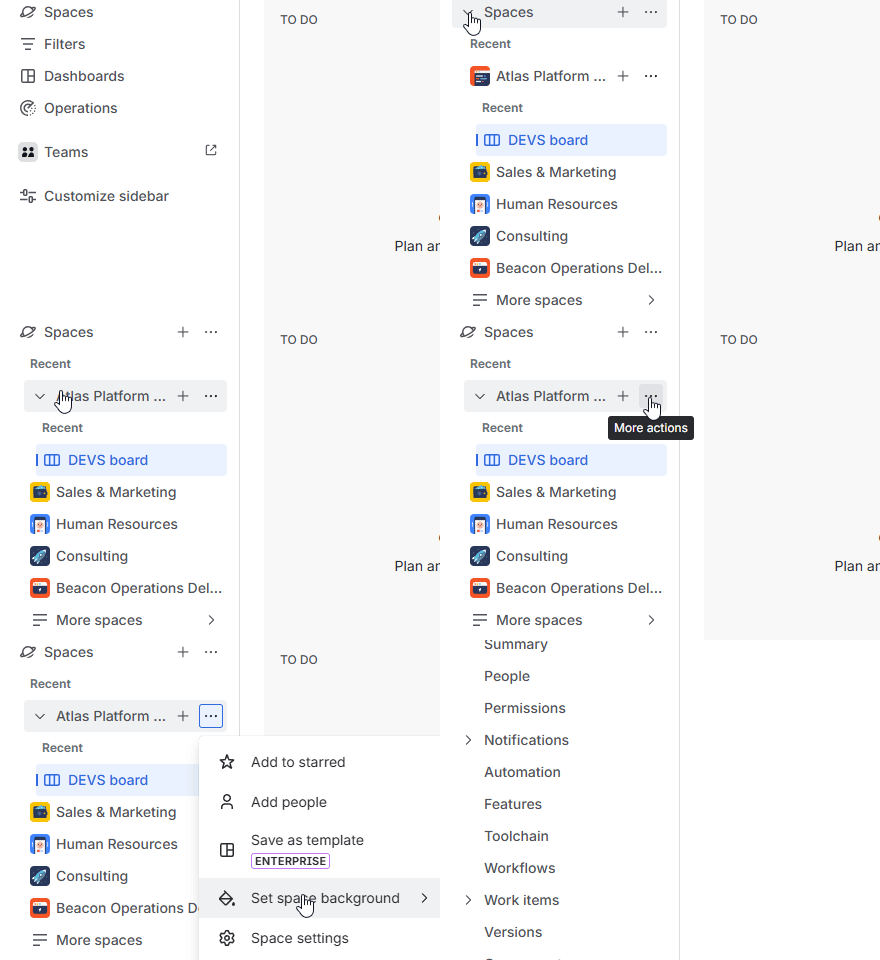
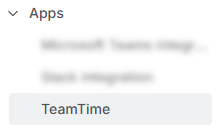
Once in space settings, look at the secondary sidebar on the left. Head to the bottom and click the Apps section, then select TeamTime from the list of connected apps.
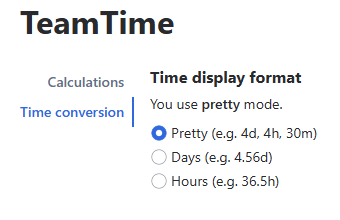
You will arrive at the Calculations page. Switch from Calculations to Time conversion tab right below the app’s name on the settings page:
Switching time conversion
In here you will find three options for time display format within TeamTime app:
-
Pretty: the time will be shown in days, hours and minutes;
-
Days: The time will be shown in days using decimals;
-
Hours: The time will be shows in hours using decimals.
If you’d like to change the time display format, click on the preferred option. A confirmation window will immediately appear.
Warning: Depending on the amount of work items within the current space, the time display conversion may take a significant amount of time.
How does TeamTime know how long is our working day?
TeamTime takes this value from your Jira instance:
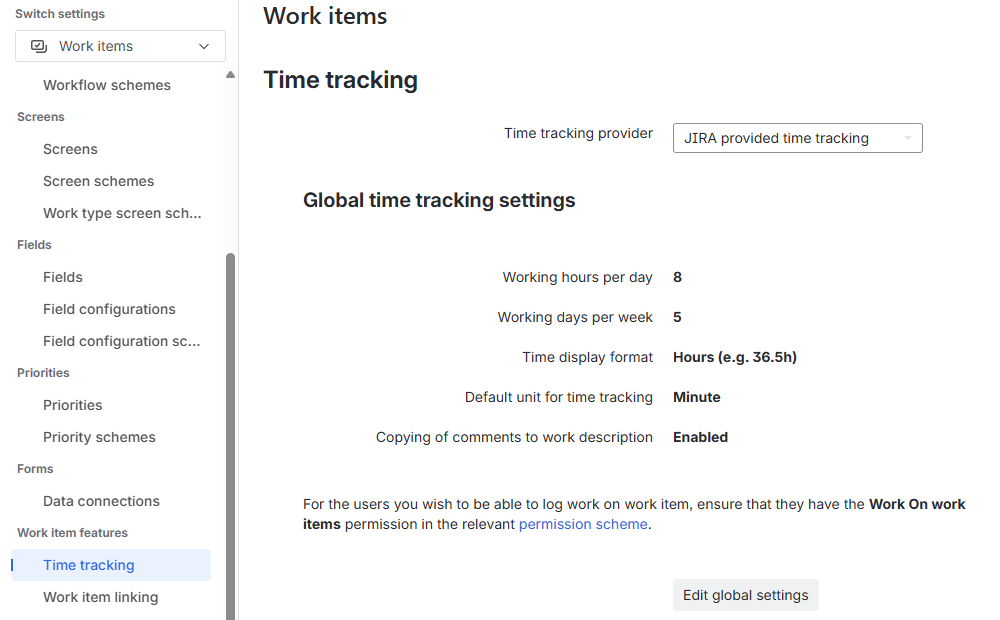
These settings are located within Work items settings of your Jira instance (Work items → Work item features → Time tracking).
Stay informed
Subscribe to get the latest updates and explore new product capabilities