
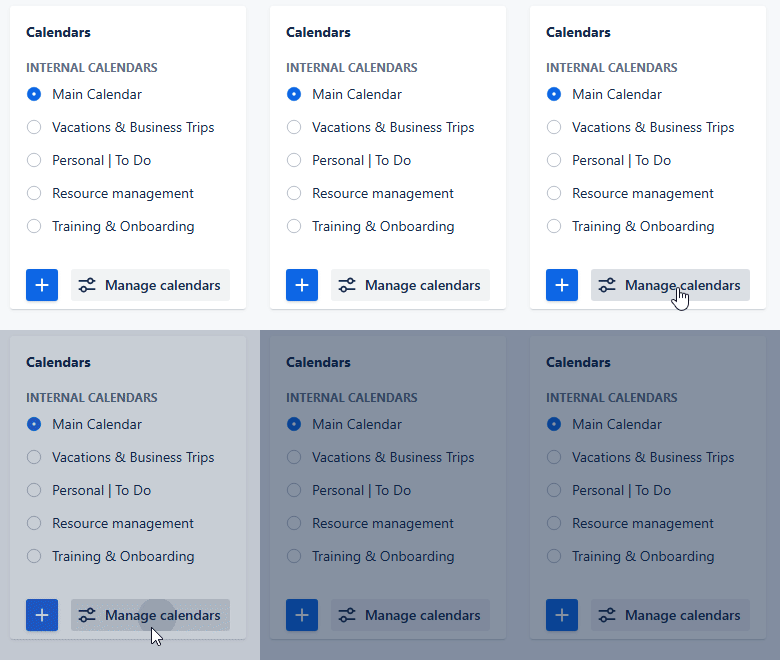
Our Calendar for Jira app provides flexibility in managing which calendars are visible in the sidebar's Calendars menu. You can select specific calendars to be readily accessible or choose to keep them hidden and access them only via the Manage Calendars option.
Calendar manager
Here's how to customize your sidebar calendar list:
Access the calendar manager by clicking the Manage Calendars button in the Calendars menu in the sidebar.
Let’s go over the main components of the calendar manager:
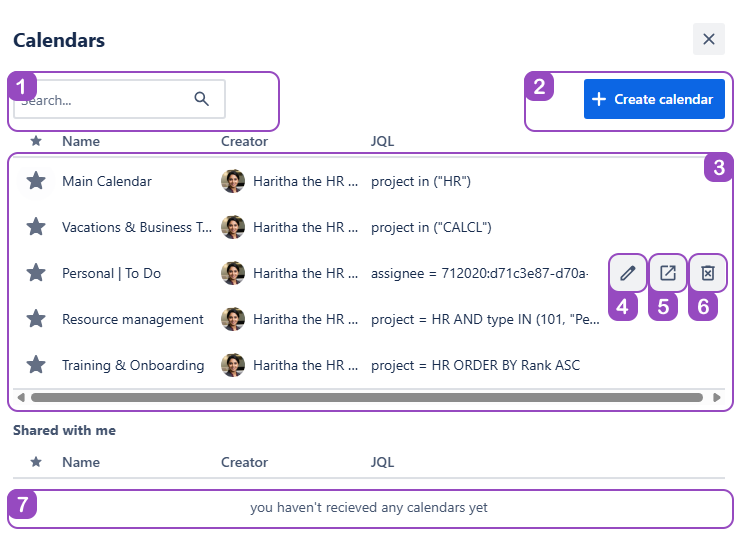
-
Search: Quickly find the needed calendar by the name.
-
Create calendar: Access the calendar creation tool directly from the calendar manager.
-
Calendars: All your calendars are stored here.
-
Edit calendar: Access all of our editing tools from the calendar manager.
-
Open calendar: Switch to the calendar you selected.
-
Delete calendar: Remove the calendar you no longer need.
Warning: Once the calendar is deleted, the settings related to it—quick filters, card colors and attached external calendars—will be permanently deleted as well.
-
Shared with me: All shared with you calendars will be displayed here.
Managing Favorites
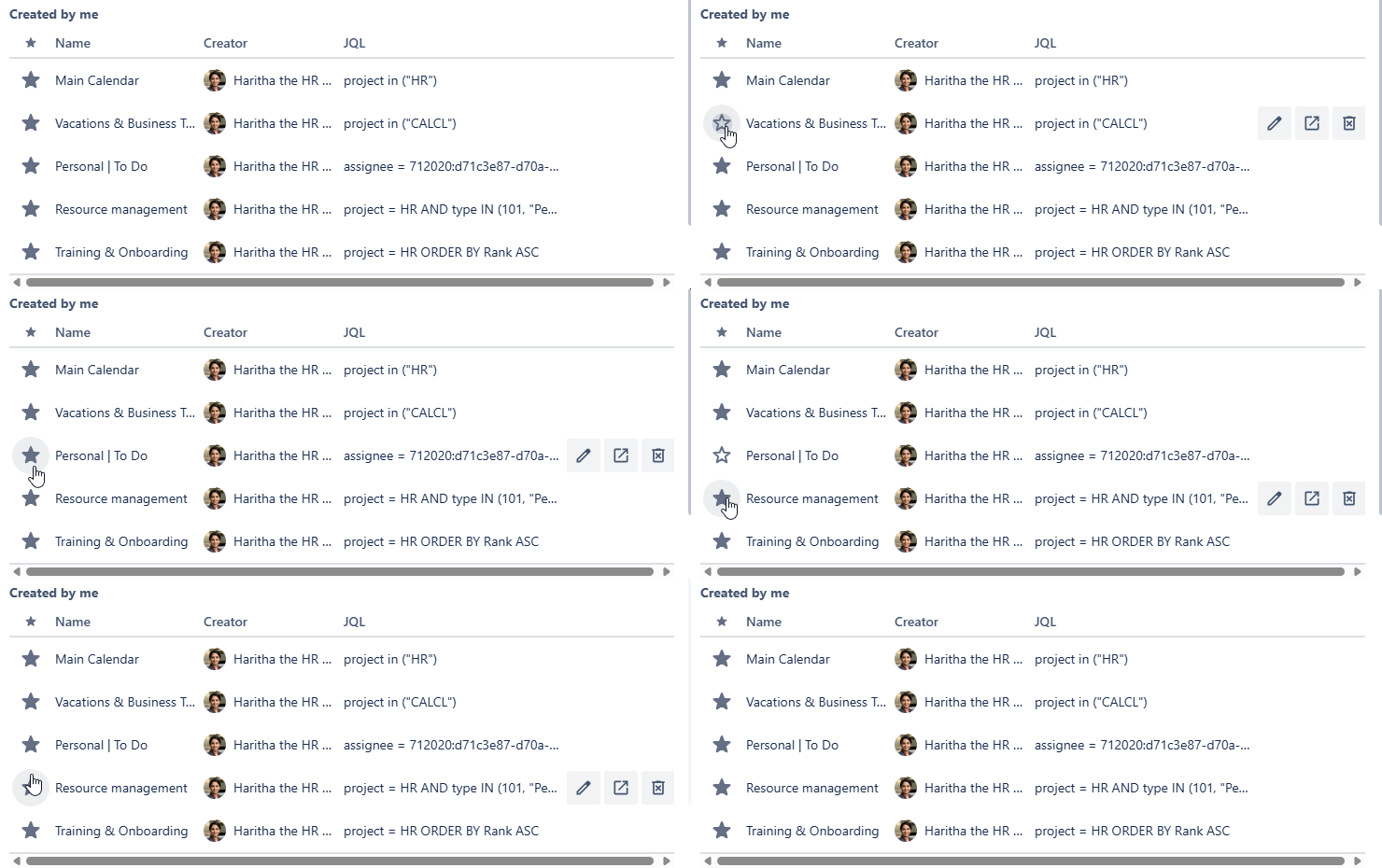
When you create new calendars in our Calendar for Jira app, they at first automatically appear in the Calendars menu. It is indicated by the filled-out star icon next to the calendar’s name:

To remove a calendar from the sidebar display, click the filled star icon next to its name. The star will change to an outline, indicating that the calendar is no longer a Favorite. Non-favorite calendars are not displayed in the Calendars menu of the sidebar.
Similarly, if you would like to add the calendar back to favorites, click the star outline button—the star will fill out, indicating that the calendar had been added back to Favorites.
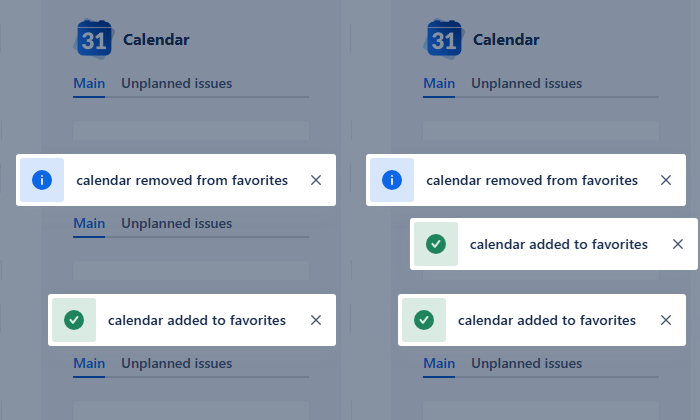
After this, the calendar will also appear in the Calendars menu of the sidebar. The changes will also be confirmed by a notification pop-up:
Switching between calendars
Switching between the calendars in the Calendars menu is very straightforward. Click on the name of the calendar you’d like to view or edit—the application will redirect you to that calendar.

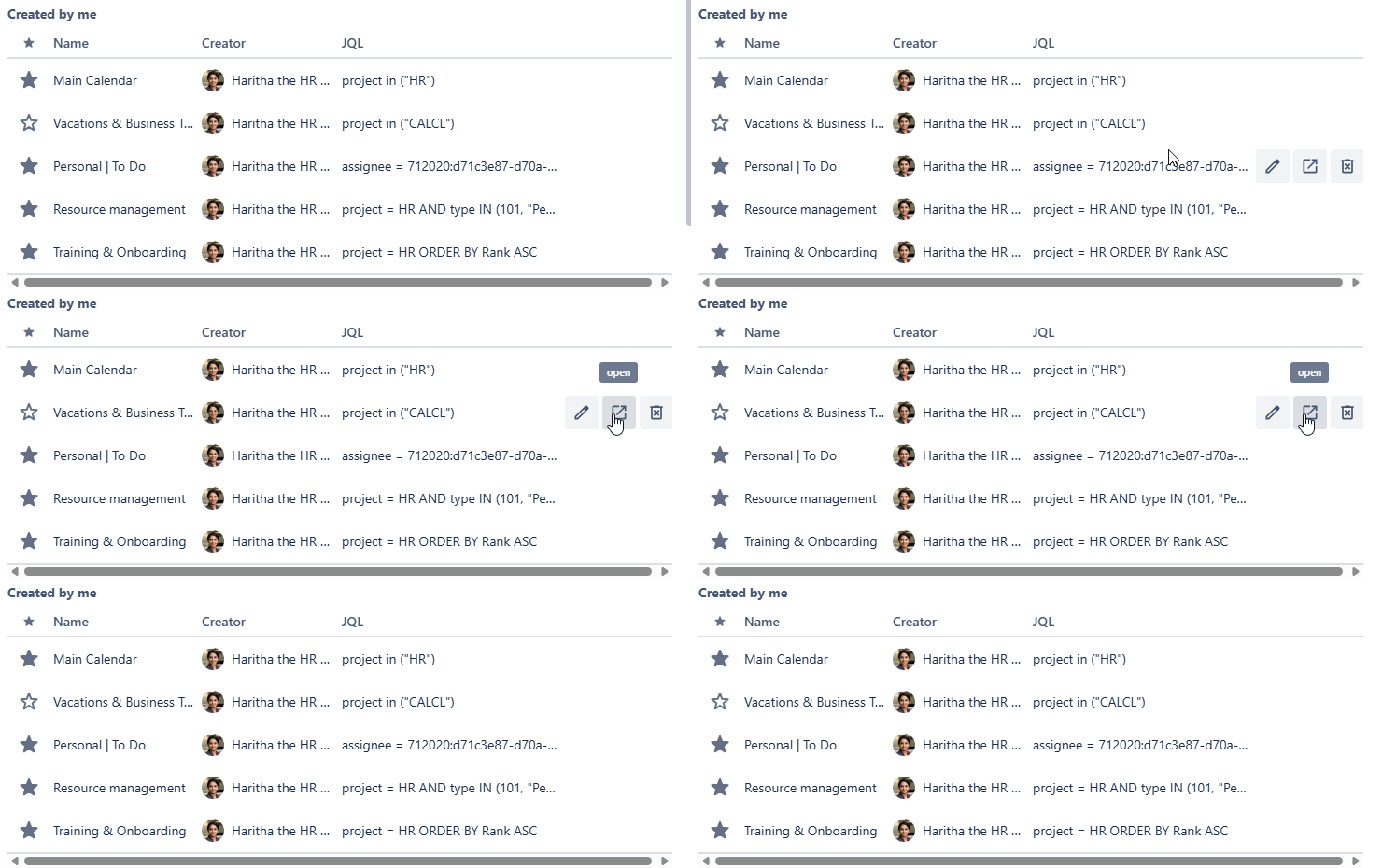
If you wish to access one of the calendars which are not in your Favorites, you can do so from the calendar manager menu:
Note: Quick filters, Card colors settings, non-JIRA events and External Calendars are linked to your individual calendars. Switching between them will make the calendar app display the settings related to the selected calendar.
Stay informed
Subscribe to get the latest updates and explore new product capabilities