
The card coloring system implemented in our Calendar for Jira app lets you visually differentiate your issues by type, status, status category, or any other property recognizable by JQL. This enhances the visual clarity of your calendar and improves its usability.
For example, have a look at this calendar over here without any color rules applied:

It can be challenging to distinguish between work items at a glance, even with the help of work type icons. That's where our powerful card coloring feature comes in to make things much clearer.
To get started:
-
Click the Settings button located at the bottom-right of your screen, below the Calendars section.

-
Navigate to the Card Colors tab.
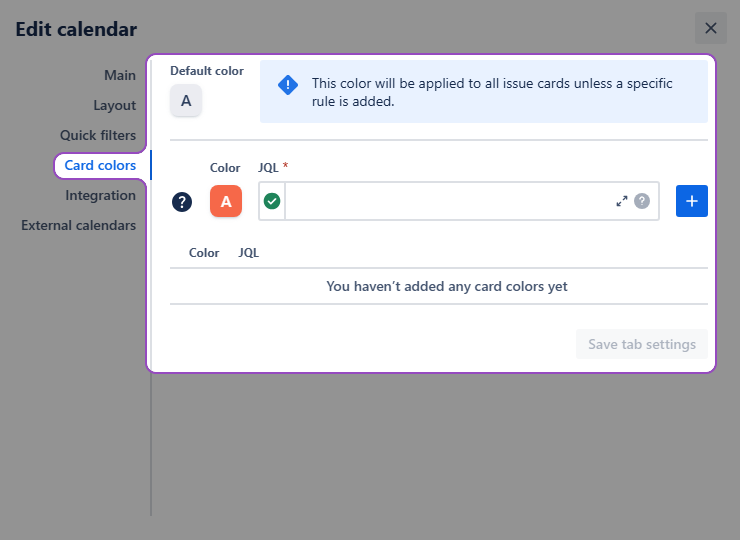
-
Choose the desired color for the issues you want to highlight.
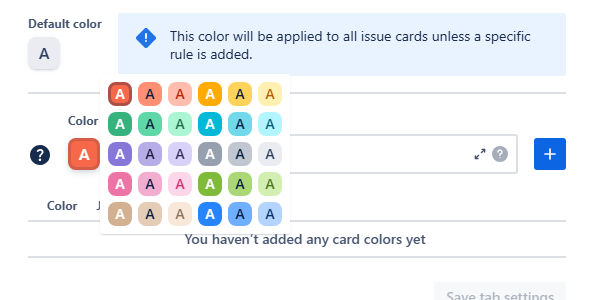
-
Enter a JQL query to define the specific issues that should receive this color.
Here’s our small tip on finding the correct query for your card colors.
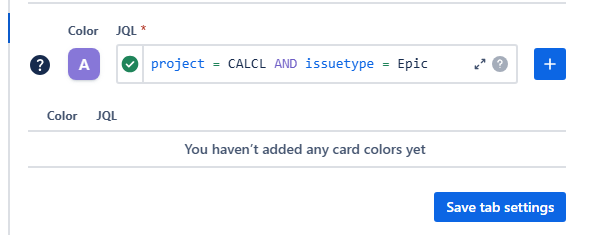
-
Click the blue + button on the right to add the color rule to the list below.
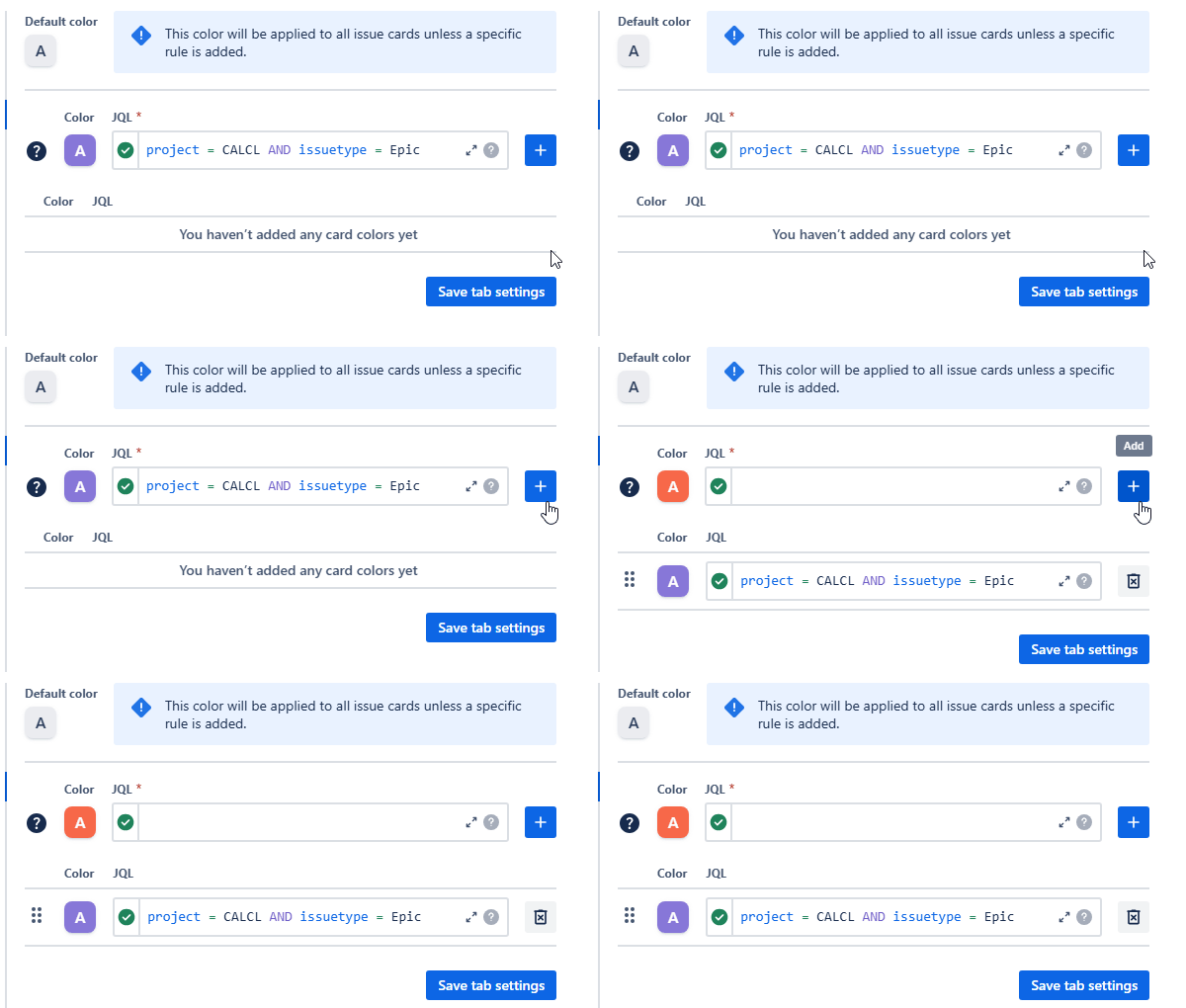
You can prioritize your color rules by dragging them up or down the list. Issue cards will display the color associated with the first rule they match.
-
Once you’ve added all the required rules to Card colors tab, click Save tab settings.
Congratulations, you’ve added some color to your calendar!

Now it’s much easier to differentiate between the work items displayed on the calendar grid.
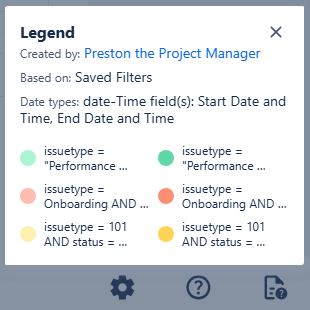
To familiarize yourself with the rules existing in another user’s calendar you can have a quick look at the Legend in the bottom of the sidebar on the right side of your screen:
Stay informed
Subscribe to get the latest updates and explore new product capabilities