
Use case description: A project manager or stakeholder needs to analyze work across multiple issues that do not belong to a single hierarchy.
This may include:
-
issues from different projects
-
multiple features or epics
-
a selection of work items based on filters or business context
Jira allows users to search and list issues, but does not provide a clear way to calculate and analyze total effort across a custom selection.
Calculation mode: Cumulative or distributive.
Current Jira setup
Jira provides issue search and filtering capabilities, but they are limited for reporting purposes:
-
Work item search (JQL): Returns a list of works, but does not provide meaningful aggregated insights across hierarchies
-
Basic reporting gadgets: Offer limited customization and are not designed for flexible, cross-project analysis
-
No unified aggregation logic: Totals are not calculated consistently across selected issues and their child structures
-
Lack of hierarchy awareness: Reports do not account for full issue trees when combining multiple items.
As a result, users often rely on exports or external tools to analyze effort across selected work.
What TeamTime provides
TeamTime allows you to build fully customizable reports based on any set of issues:
-
Create reports using any combination of work items, across projects and hierarchies
-
Automatically include full issue hierarchies for each selected item
-
Apply consistent calculation logic (cumulative or distributive)
-
View total estimates, time spent, remaining work, and progress ratios
-
Save reports for repeated use and sharing.
How it works
-
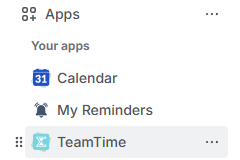
Open the TeamTime global reports page:
-
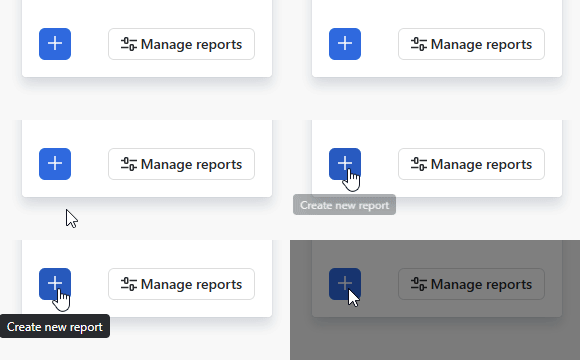
On the right side of your screen, locate and click Create new report button:
-
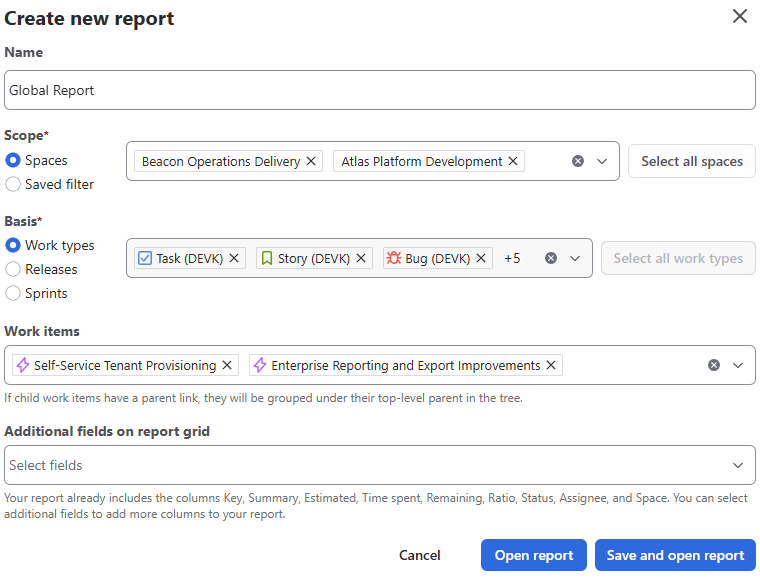
In the report creation window, select the scope of your report:
-
Spaces or saved filters
-
Work types, releases, or sprints
-
Specific work items (optional);
-
Save and open the report:
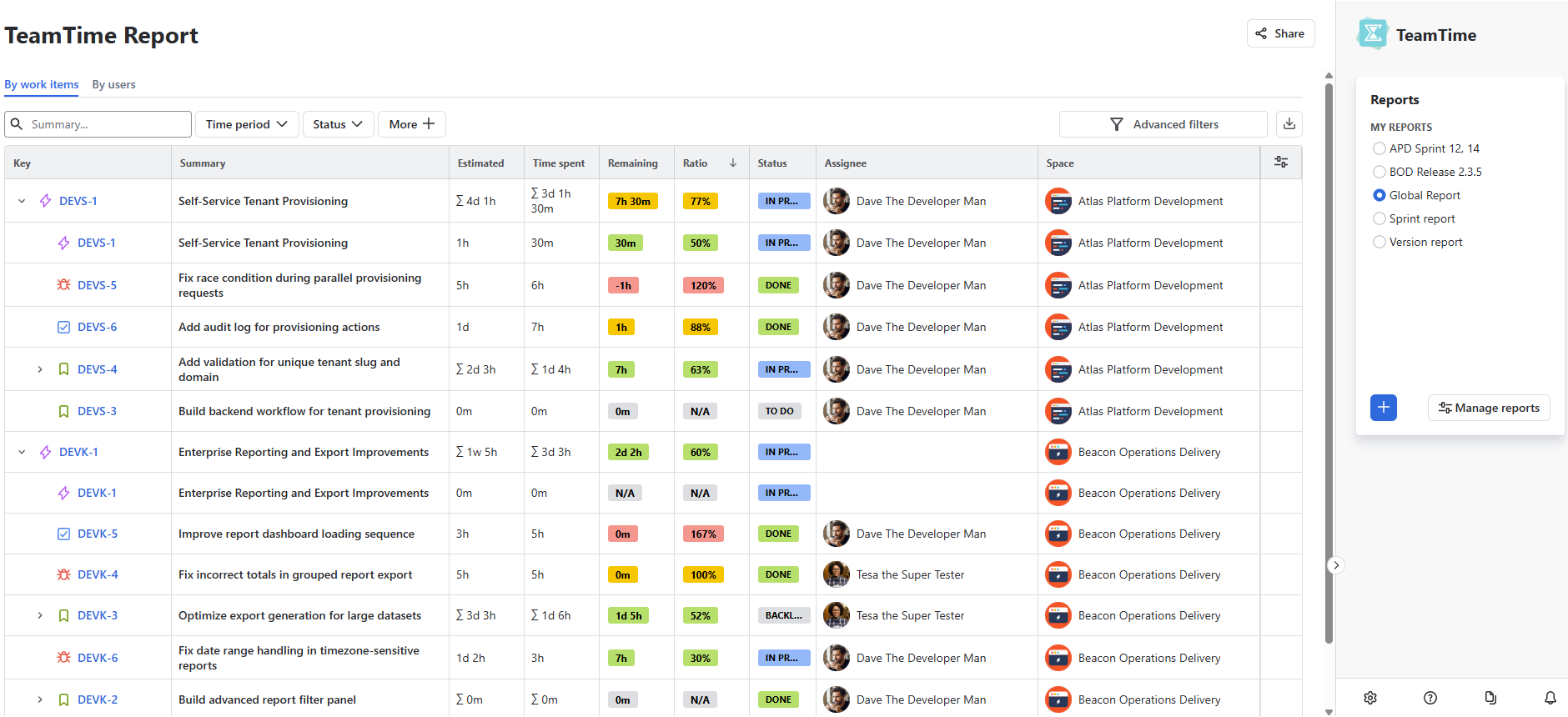
TeamTime automatically includes all related issues based on your selection and builds a hierarchical view of the data.
Important
-
Calculation mode is defined at the space level. Each space uses its configured calculation model (cumulative or distributive).
-
Reports can include work items from multiple spaces. This means a single report may combine data calculated using different modes.
-
In most cases, reports use a single consistent calculation model. Mixing modes is supported, but typically only useful in advanced scenarios.
If you have a case where both distributive and cumulative modes are used together, please let us know through contacting our support! We will be happy to display your case for others. 🙂
Stay informed
Subscribe to get the latest updates and explore new product capabilities