
Overview
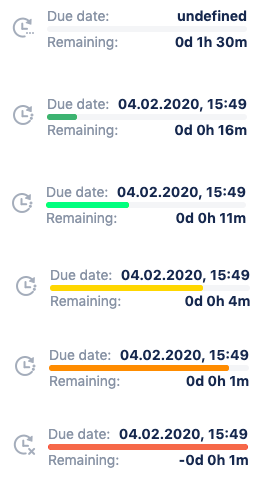
To improve visibility, HelpDesk lets you color-code SLA fields based on remaining time or specific issue conditions. For example:
-
Incidents: Yellow when 50% of SLA remains; orange when only 15% remains.
-
Feature requests: Green until SLA is breached.
This page explains how to create and manage your color schemes.
Managing Calendars
-
Jira Administrators:
Set up and manage color schemes at Jira Administration → HelpDesk → SLA → SLAs. -
Project Administrators:
Manage color schemes at Project → Add-ons → HelpDesk SLA → Calendars.
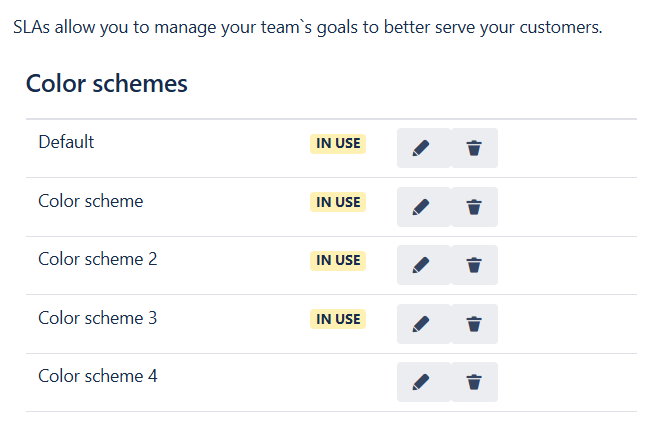
On these pages, you'll see a list of all existing color schemes.
Default Color Scheme
To get you started, HelpDesk comes with a default Standard color scheme with the red color for breached SLAs and green – for others. You can change the default scheme if required.
Creating a Color Scheme
-
Click Add Scheme – a modal dialog will appear.
-
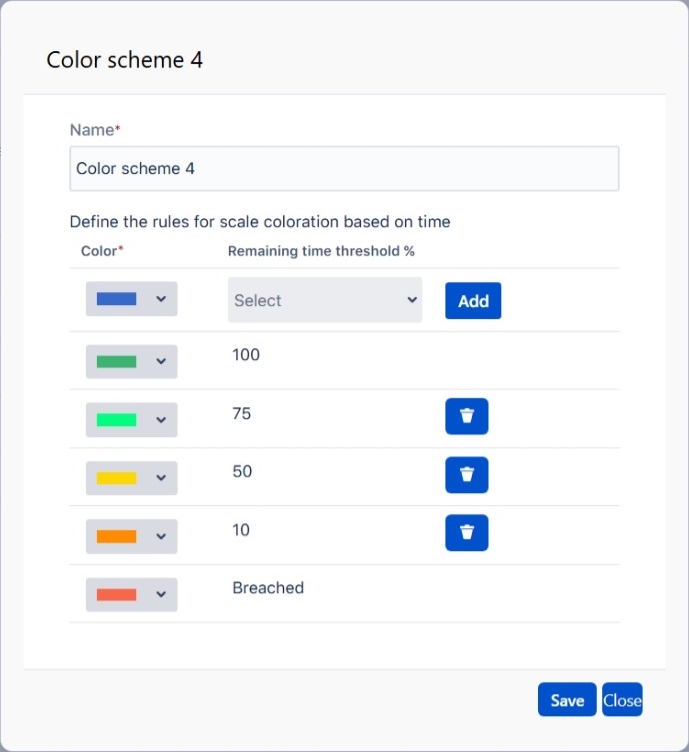
In the modal dialog you can set up the scheme. It consists of color rules with two rules added by default for a new entry – for breached and not breached SLA. Here you can change the color of a rule or add more rules in between.
-
Once you’ve finished adding entries, click Save—and you’re all set.
If you modify a color scheme that’s in use it will be applied to all associated issues. The color schemes in use cannot be deleted.