
Reminders provide timely nudges along your workflow, but setting them manually for every routine task can feel repetitive. The Reminder app integrates directly with Jira Automation, allowing you to trigger reminder creation automatically when key workflow events occur. Set up a rule once, and reminders will execute flawlessly whenever specified conditions are met.
Permission requirements
Automation rules can be accessed and configured at two levels, depending on your administrative privileges:
-
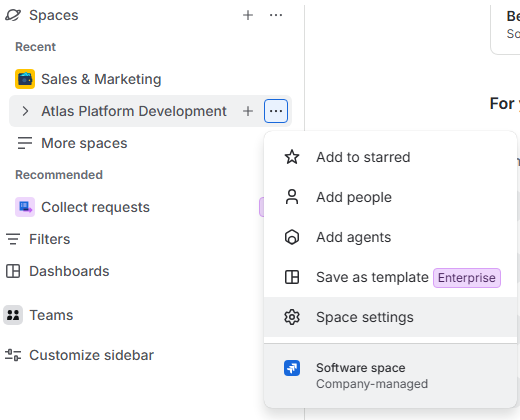
Space Automation (Space-level):
-
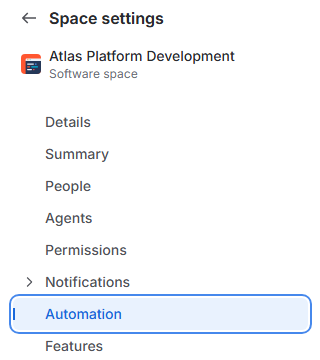
Path: Go to Space settings > Automation.
-
Required Permission: Administer Projects for that specific space.
-
-
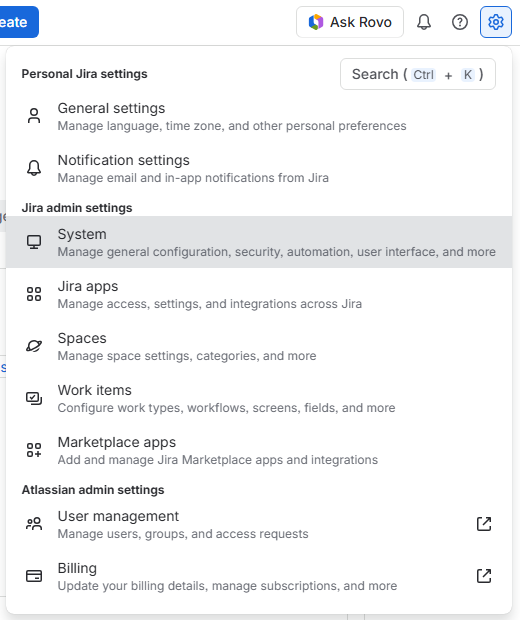
Global Automation:
-
Path: Click the Settings (gear icon) in the top navigation bar > System > Automation rules (or Global automation).
-
Required Permission: Global Jira Administrator permissions.
-
Action component overview
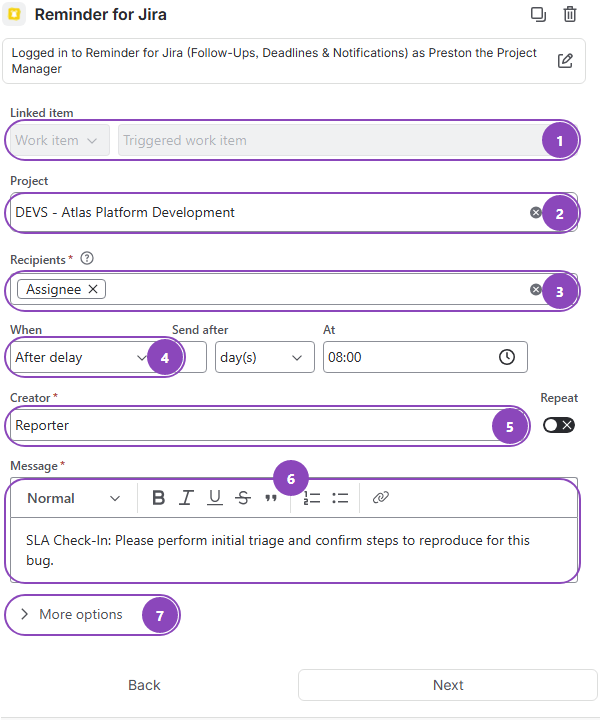
When adding the Reminder for Jira Action to an automation rule, you will configure the following fields:
-
Linked Item: Automatically set to the Triggered work item. This field ties the reminder directly to the event context and cannot be modified.
-
Projects: Displays the project scope (applicable to space-level automation).
-
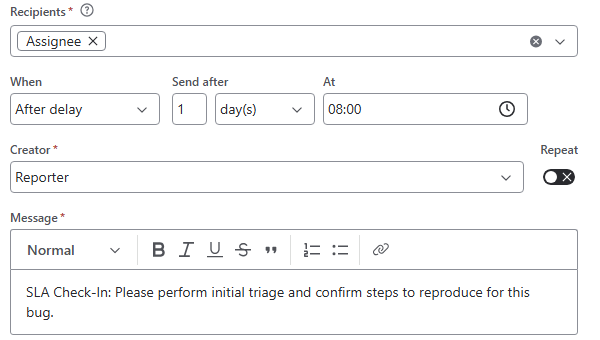
Recipients: Specifies who receives the reminder. Can be dynamically mapped to the triggered item’s Assignee, Reporter, or set to specific individual users/groups.
-
When: Controls when the reminder triggers:
-
Immediately: Creates and triggers the reminder at the exact moment the automation rule fires.
-
After Delay: Schedules the reminder to fire after a specified time offset (hours, days, weeks) and allows setting a specific time of day.
-
-
Creator: Defines the user account under which the reminder is created and sent.
-
Message: Main body of a reminder.
-
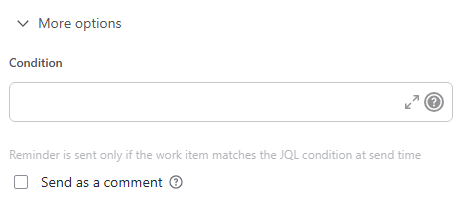
More Options:
-
Send as a comment: Automatically posts a public comment from the Reminder app on the work item when the reminder triggers.
-
Conditions: (Coming soon) Advanced JQL conditions for fine-grained rule execution.
Real-world example: 1-Hour SLA Bug triage nudge
Imagine a Jira Service Management (JSM) team that wants to ensure no new bug slips through the cracks. While Jira sends an instant notification when a ticket is logged, scheduling an automated reminder 1 hour after creation gives assignees a timely nudge to meet initial response SLAs.
Step-by-Step Rule Setup
-
Open Jira Automation section within Space settings:
-
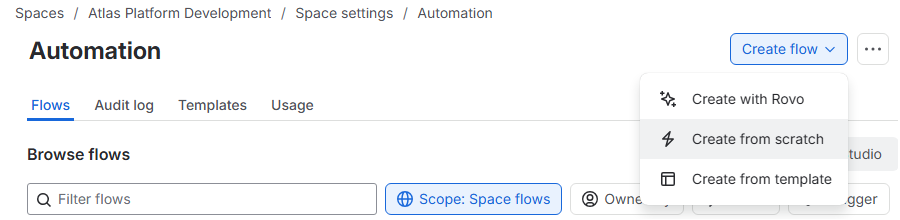
Create a new flow from scratch:
-
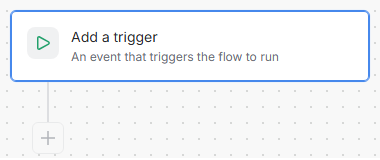
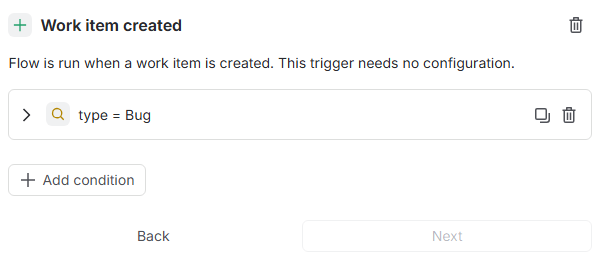
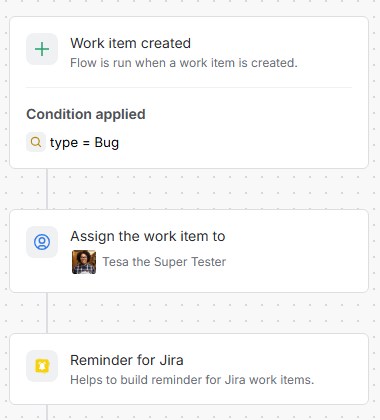
Select the Trigger: In Jira Automation, choose a trigger by clicking Add a trigger. Create a new rule using the Work item created trigger:
-
Add Conditions: Add a JQL condition where type = Bug.
-
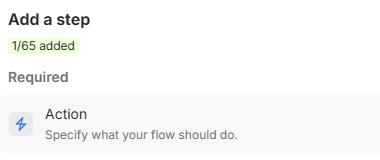
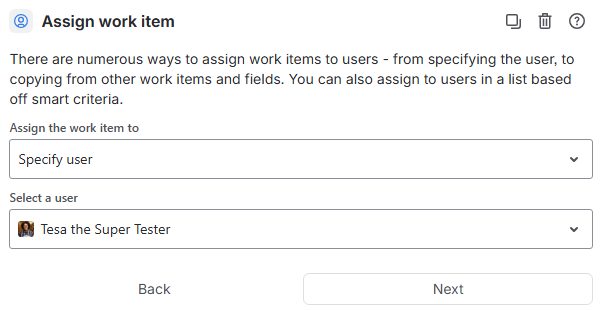
Assign the work item: Under Actions, select Assign the work item. Automatically assign the bug (e.g., auto-assigning to a QA team member, such as Tesa the Super Tester):
-
Add the Reminder Action:
-
-
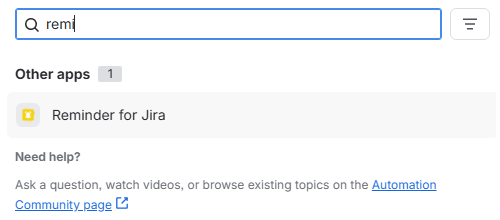
Add another action and then select Reminder for Jira from the action list:
-
-
-
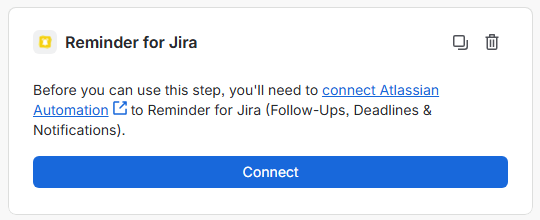
Agree to connect the Reminder App to Jira Automation:
-
-
-
Set Recipients to Assignee (or select specific team members).
-
Set When to After Delay and specify 1 hour.
-
Configure the message: SLA Check-In: Please perform initial triage and confirm steps to reproduce for this bug.
-
-
-
Click Next:
-
After these operations the flow will look similar to this:
-
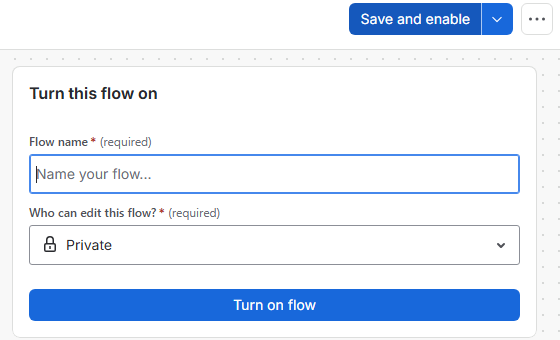
Choose editing configuration, then Save and Enable: Turn on the rule for your space.
Now, every time a new bug is submitted, the assigned team member will automatically receive a reminder exactly 1 hour after creation, ensuring prompt review and SLA compliance.
Stay informed
Subscribe to get the latest updates and explore new product capabilities