
This is a short, practical guide summarizing the essential steps for migrating the Calendar for Jira from Jira Data Center to Jira Cloud. Before starting the migration, carefully review the official Atlassian documentation linked at the end of this guide to ensure all prerequisites and procedures are fully understood.
-
Assess and prepare apps with the Cloud Migration Assistant: https://support.atlassian.com/migration/docs/assess-and-migrate-apps-with-the-cloud-migration-assistant/
-
Assess apps with the Jira Cloud Migration Assistant (JCMA): https://support.atlassian.com/migration/docs/assess-apps-with-the-jira-cloud-migration-assistant/
-
Step‑by‑step DC → Cloud (Atlassian Community): https://community.atlassian.com/forums/Jira-articles/Step-by-Step-Guide-Migrating-Jira-Data-Center-to-Jira-Cloud/ba-p/2925735
-
Migrate Marketplace app data separately: https://support.atlassian.com/migration/docs/migrate-marketplace-app-data-separately/
As recommended by Atlassian run at least one test migration before production.
Feature availability differences (Data Center vs Cloud)
When migrating from Jira Data Center to Cloud, keep in mind that the feature set differs slightly between platforms. The Cloud version does not support:
-
the following settings from the Advanced calendar section:
-
linking of the issue’s duration to the Original estimate;
-
24-hour / 12-hour time display format on the grid (only 12-hour format is supported);
-
groups whose members are allowed to edit issues directly on the calendar;
-
-
timeline view grouping by different fields;
-
quick filters grouping;
-
different quick filter operators (only AND);
-
export to / import from iCal format;
-
service desk / project sections of the app;
-
sharing calendars with individual users (only groups);
-
any day of the week can be selected as first (only Sunday and Monday can be selected);
-
hiding any day from the grid (only weekends can be hidden).
Migration steps
1) Pre‑checks (before any run)
-
✅ Jira Cloud Migration Assistant (JCMA) installed/updated on DC (latest available).
-
✅ All projects/issues that are used in the app are identified.
-
✅ The Calendar for Jira installed on the Cloud site (same vendor as on DC) and a trial/license activated.
2) Assess the Calendar for Jira app in JCMA (DC)
-
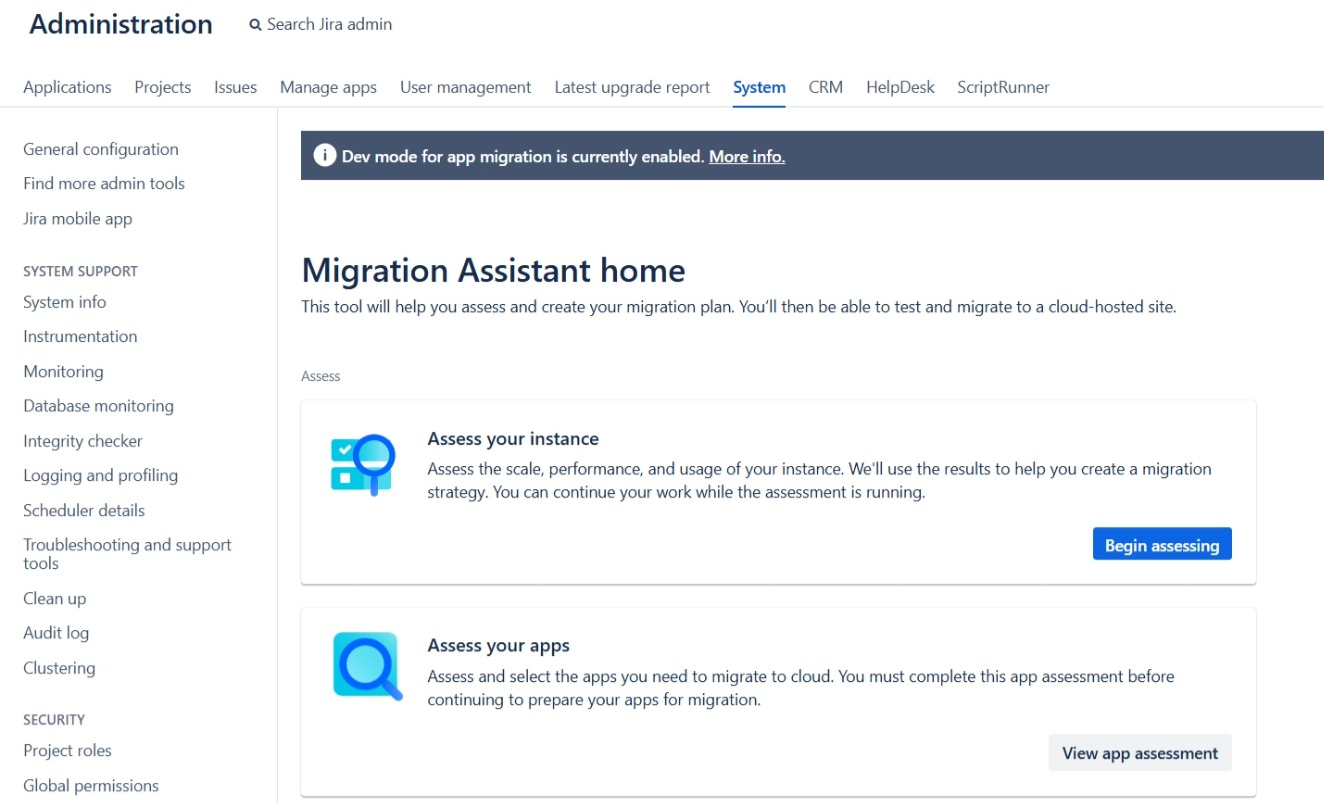
Go to Administration → System → Migrate to cloud (open Jira Cloud Migration Assistant).
-
Open Assess your apps.
-
Locate your Calendar for Jira app in the list and make sure that it is chosen for migration (Needed in cloud).
3) Prepare the app for migration (Cloud + DC)
-
Open Prepare your apps.
-
Connect to a cloud site
-
Install your Calendar for Jira (if not already installed)
-
Consent to app data migration.
4) Migrate your data
-
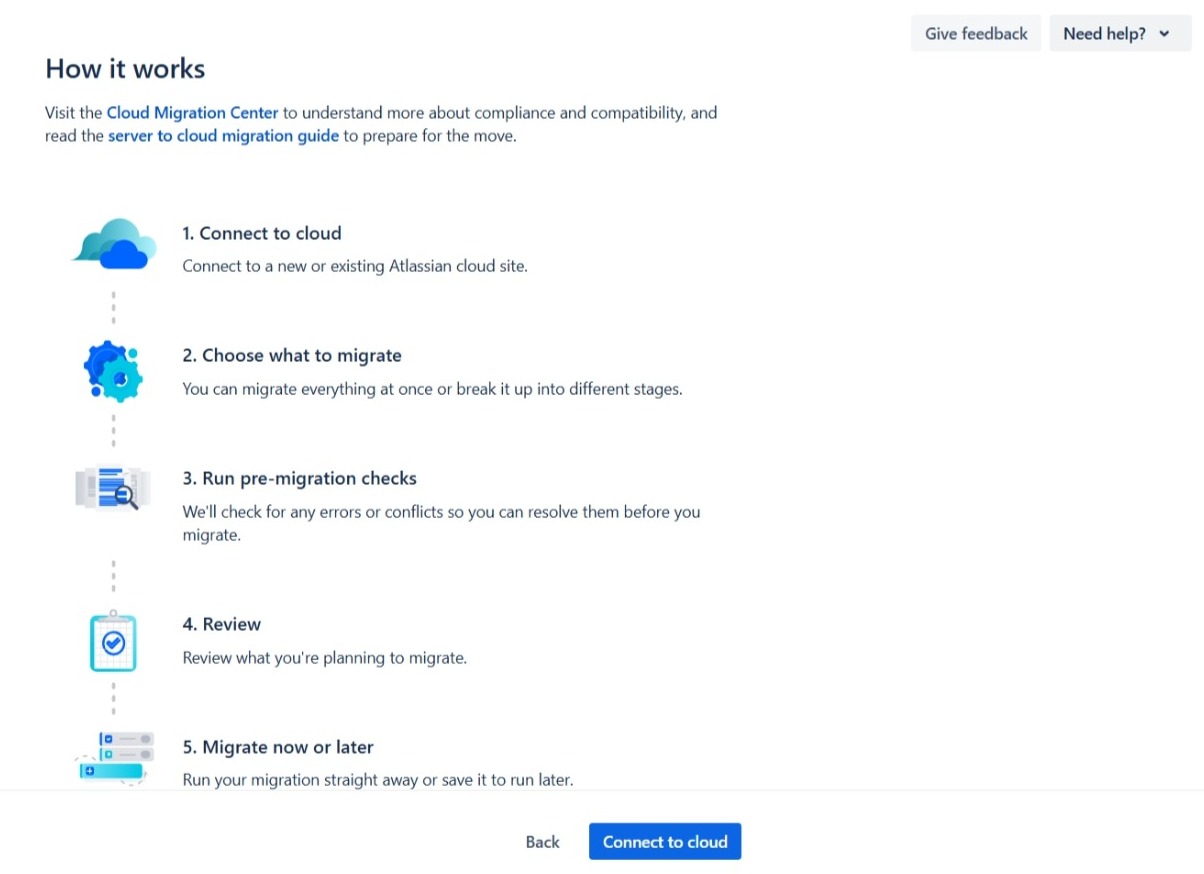
Open Create a migration.
-
Follow the steps of migration guide.
Make sure that all data relevant to the app such as projects, issues, users and groups will be migrated (or have already been migrated) during this process. -
Run pre‑migration checks and review the data.
-
Run migration.
5) Migration limitations and fallback behavior
If the Data Center → Cloud migration is interrupted, incomplete, Jira Cloud does not contain all entities referenced by a calendar or there is a diffrence in the app functionality between DC and Cloud some calendar data may be migrated with limitations:
-
Missing or inaccessible projects
If a project used by a calendar does not exist in Cloud, or the user does not have access to it in the target instance, the calendar is still migrated. However:-
issues from that project will not appear in the calendar;
-
an alert icon will be shown in the calendar settings button to indicate a configuration problem;
-
the calendar base may become invalid, depending on how the calendar was configured.
-
-
Missing saved filters
If a saved filter used by a calendar does not exist in Cloud, the calendar is still migrated, but:-
the calendar grid will be empty;
-
the user will see an error because the calendar base is invalid.
-
-
Missing groups
If groups referenced by calendar sharing settings do not exist in Cloud, the calendar is still migrated, but those groups are not added to sharing. They will not appear in the sharing menu.
Sharing is also not migrated if the calendar was shared directly with individual users, because Cloud does not support this sharing mode. -
Missing custom fields
If custom fields used by a calendar do not exist in Cloud, the calendar is still migrated, but those fields are not shown in calendar cards or in the issue preview card. -
Missing users
If the original calendar creator cannot be found in Cloud, the migration first attempts to identify that user byemailAddressamong existing Cloud users. If the creator still cannot be identified:-
the calendar is still migrated;
-
the calendar is migrated without a creator;
-
the calendar cannot be deleted, because only the creator has permission to delete it.
-
-
Quick filters and card colors
In Data Center, quick filters and card colors can be created without JQL and during migration:-
quick filters with empty JQL are not migrated;
-
card colors with empty JQL are not migrated.
-
-
External calendars
External calendars have specific migration rules:
- if an external calendar has no name, it is migrated with a default name in the formatExternal Calendar N, whereNis a number;
- external calendar names must be unique within the same calendar in Cloud.
Additionally, an external calendar cannot be migrated:-
if its link is missing;
-
if it was added as a file.
-
-
First day of the week
In Data Center, the first day of the week can be set to any day. In Cloud, only Monday and Sunday are supported.During migration:-
calendars configured to start on Sunday will keep Sunday;
-
all other values will be migrated as Monday.
-
-
Hidden days
In Data Center, any days of the week can be hidden. In Cloud, this setting is not migrated and not processed during migration. -
Empty end dates
In Cloud, there is a setting that controls whether issues with an empty end date should still be displayed. By default, Cloud allows such issues to be displayed.
To preserve the familiar Data Center behavior, migrated calendars do not display issues when the configured end date field is empty. -
Same start and end date fields
In Data Center, a calendar can use the same field for both start and end date. In Cloud, this is not allowed. When such a calendar is migrated:-
it is migrated as a single-date calendar;
-
the end date field is left empty.
-
Migration Completion Messages
At the end of your migration, you will see one of the following completion messages (example):
“Calendar for Jira (Timeline Roadmaps and Custom Events) migration completed. 35 calendar(s) were migrated. 22 item(s) were skipped due to validation errors or missing data: 5 external calendar(s), 6 quick filter(s), 1 card color(s), and 10 role(s). 37 event(s) were created.”