
To ensure TeamTime calculates metrics accurately, its custom fields must be added directly to your Space settings (Team managed spaces), or associated with your instance's Field Schemes (Company managed spaces).
What are these fields? TeamTime custom fields overview
Starting with TeamTime 4.0.0, the app uses own custom field to store information:
-
TeamTime Data (TL): The primary core field and single source of truth for TeamTime. It gathers raw estimation and work log data from native Jira fields (in Cumulative or Distributive mode) or from user estimates and work logs (in CumulativePlus mode).
In future releases, this field will also store the data regarding work categories (WBS).
Additionally, upon being installed on your instance, TeamTime adds 4 custom fields:
-
Estimate (TL): Displays the total planned effort calculated by TeamTime for the work item and its sub-tree.
-
Time Spent (TL): Reflects the total logged hours aggregated across the work item hierarchy.
-
Remaining (TL): Shows the net work remaining (Estimate minus Time Spent).
-
Ratio (TL): Represents the progress percentage calculated from time spent against total estimated effort.
All five fields are read-only, and values stored in them cannot be updated manually.
JQL Integration Note: While TeamTime Data (TL) handles internal logic, the remaining four fields (Estimate, Time Spent, Remaining, and Ratio) serve as queryable aliases that you can use directly inside Jira Query Language (JQL) searches, custom filters, and dashboard gadgets.
How to Add TeamTime Fields to Your Space
-
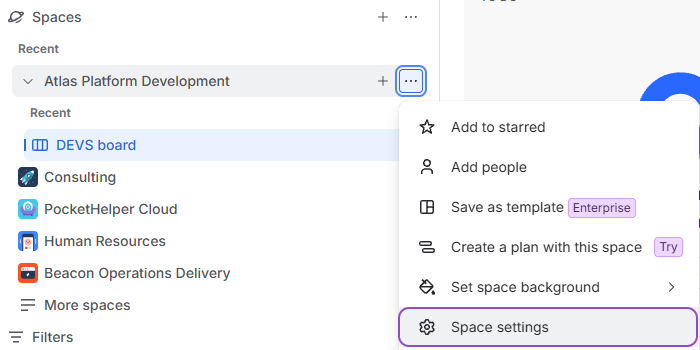
Locate your space in Jira’s primary sidebar on the left.
-
Click the More options (…) button next to your space name and select Space settings.
-
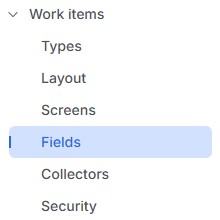
In the Space settings sidebar, navigate to Work items > Fields.
From here, choose one of two setup paths depending on your space configuration:
Team managed space:
-
In the top-right corner of the screen, click Add fields.
-
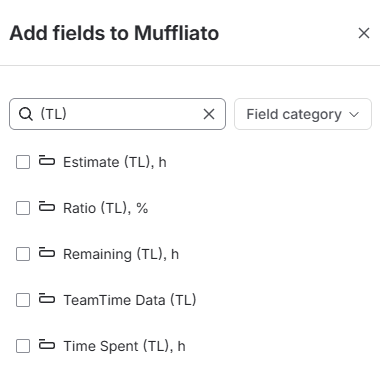
In the search bar that appears in the right sidebar, type (TL) and locate the 5 custom fields containing the (TL) suffix in the search results list:
Space settings - Adding fields -
TeamTime requires TeamTime Data (TL) field for proper work. Other fields are optional, but you can add them to the space to later display them on the work item screen.
Select the checkbox next to each of the 5 fields, then click Add 5 fields at the bottom of the sidebar to confirm: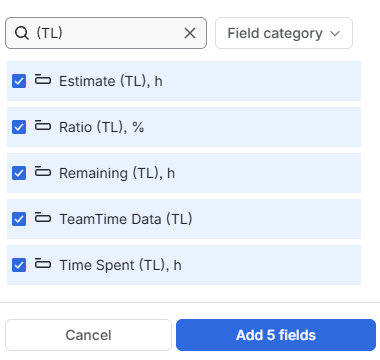
Space settings - Confirming choices
Once added, TeamTime will successfully locate these custom fields and perform calculations across your space.
Company managed space:
Warning: You must have Jira Administrator privileges to modify global field schemes. If you do not have these permissions, contact your Jira system administrator.
-
In the top-right corner of the screen, click Actions > Edit fields.
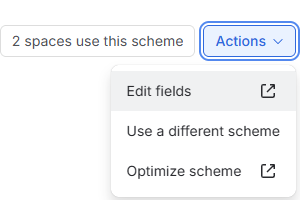
Note: This will redirect you to the global Jira Administration panel for the Field Scheme assigned to your space.
-
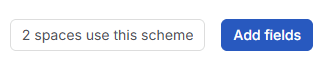
On the Field Scheme screen, click Add field in the top-right corner.
-
In the search bar at the top of the appearing sidebar, type (TL):
Field Scheme settings - Adding fields -
TeamTime requires TeamTime Data (TL) field for proper work. Other fields are optional, but you can add them to the space to later display them on the work item screen.
Select the checkbox next to each of the 5 custom fields displaying the (TL) suffix in parentheses.
-
Click Add 5 fields.
Once added, TeamTime will automatically detect these fields in your space and perform the required metric calculations.
If TeamTime Data (TL) field was previously missing in your space, manually trigger Recalculation after adding it.