.png)
Compact vs. Expanded mode
Depending on your workflow, it can be inconvenient to have work items hidden behind +2 More or +3 More flags. To give you full visibility, Calendar for Jira now allows you to expand your calendar view.
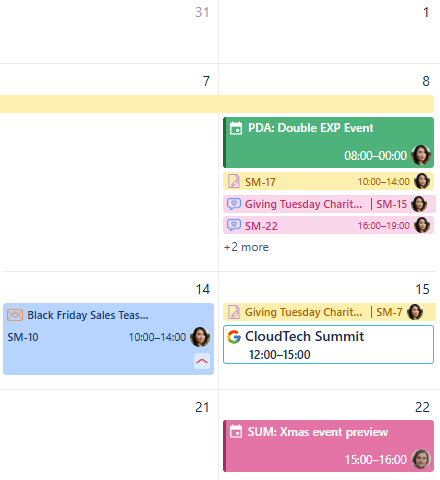
Calendar Compact mode

Calendar Expanded mode
Instead of grouping items, the Expanded View displays every configured work item directly on the calendar grid.

Note: If your calendar is exceptionally information-heavy (containing a high volume of simultaneous work items), enabling Expanded View may impact the app's loading performance.
How to Enable Expanded View
By default, all calendars have Expanded View turned off. To enable it, follow these steps:
Within the Calendar for Jira app, navigate to the calendar you wish to update.
In the sidebar on the right side of your screen, click the Settings button at the bottom. The calendar configuration window will appear.

Compact vs. Expanded mode - Settings
Navigate to the Layout tab within the settings menu.
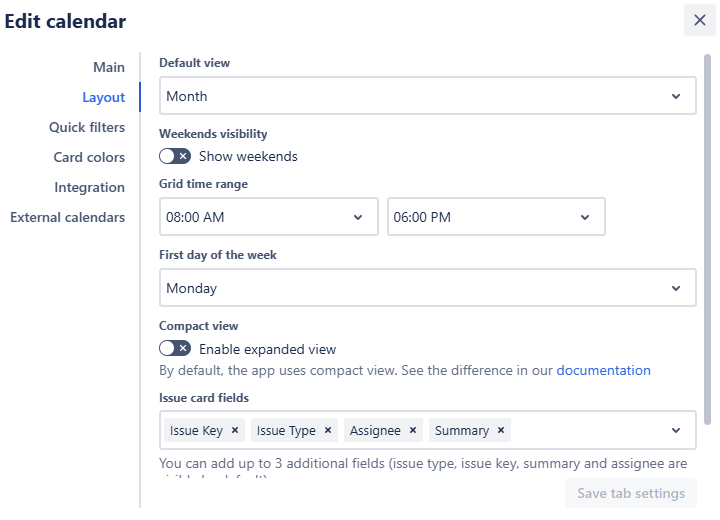
Compact vs. Expanded mode - Layout settings
Locate the Compact View section and switch the Expanded View toggle to On. The toggle will turn from gray to green to indicate the change.

Compact vs. Expanded mode - Changing the mode
Click Save tab settings.
Your calendar is now in Expanded View, and all work items are fully visible!
Switching Back
If you prefer to return to the compact mode, simply return to the Layout settings, toggle the switch off, and click Save tab settings.